3. Background check management
In this article you will find how read and manage documents provided by 'candidates' and 'RDD provider'.
Access to the external platform
From the QuartzGOV homepage, click on 'manage due diligence' button insight the 'Due diligence' module. Then click on 'investments', open the oversight process you want and click on 'open VDR' button from the oversight process header.
The menu of the background check related to the oversight process will appear.
Find a background check
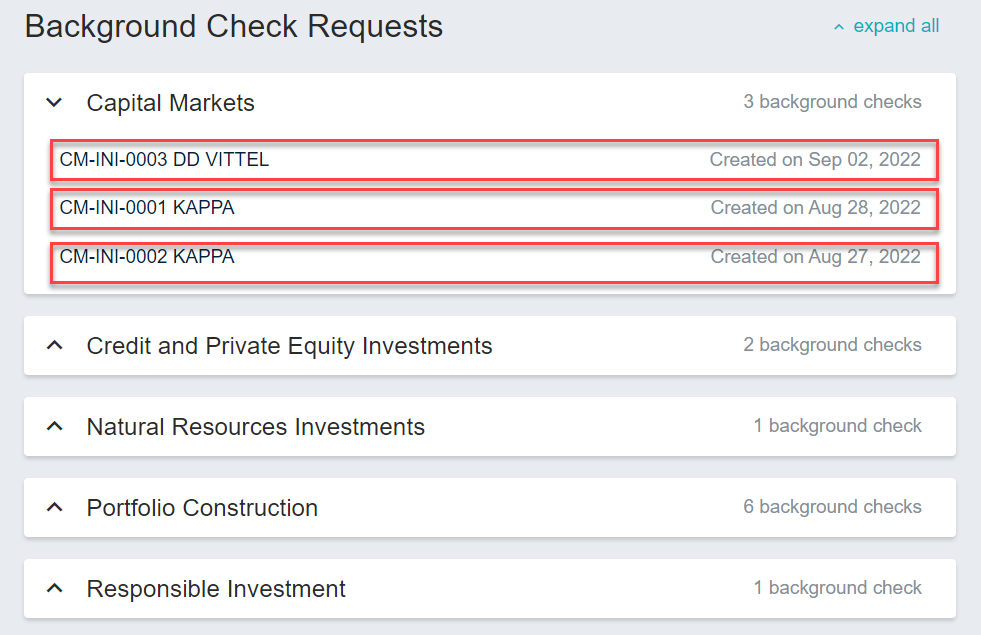
From the external platform main menu, it is possible that several background check are related to you. Open the business unit linked to the background check and click on the background check you are looking for to open it.
Example of background checks related to the business unit 'capital markets
Manage background check documents
From a background check detailed view, you can manage the document provided by stakeholders from the respective sections.
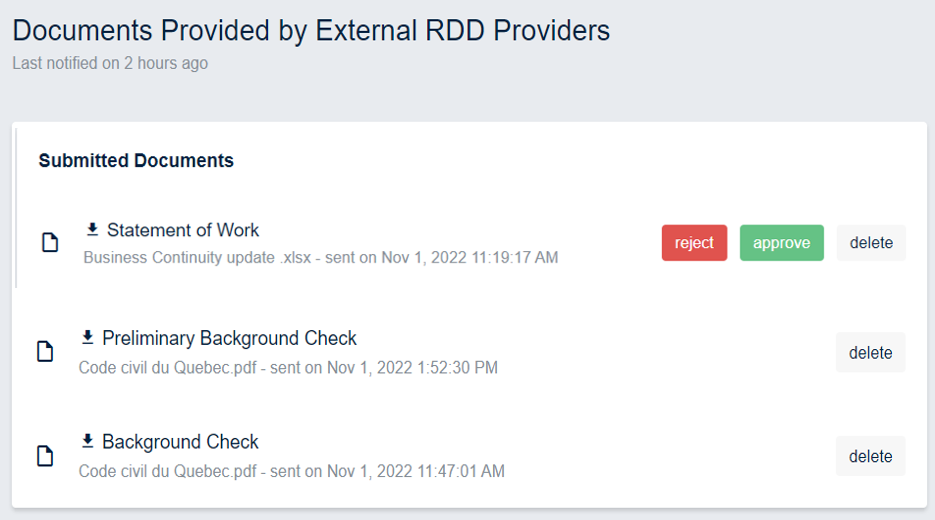
Manage documents provided by external RDD providers
From the 'document provided by external RDD providers' section you can:
- Download the statement of work and delete, reject or approve it.
- Download or delete the preliminary background check.
- Download or delete the background check.
Section RDD provider
Manage documents provided by contacts
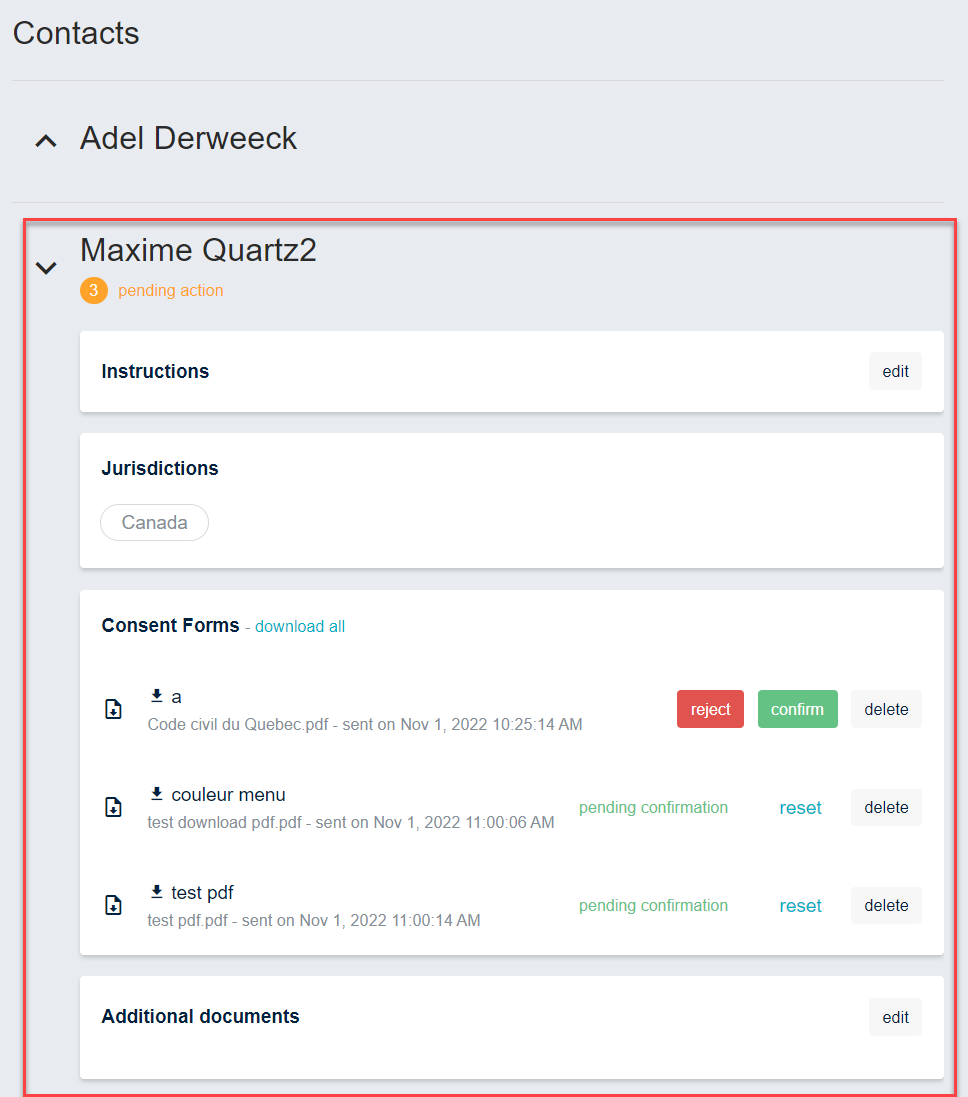
From the 'contacts' section, you can view all contacts related to the background check. Click on the contact you want to manage to open the detailed view. From this view you can :
- Download documents.
- Reject, approve or delete a document.
- Reset your choice.
*Section Contacts *
Manage documents for legal entities
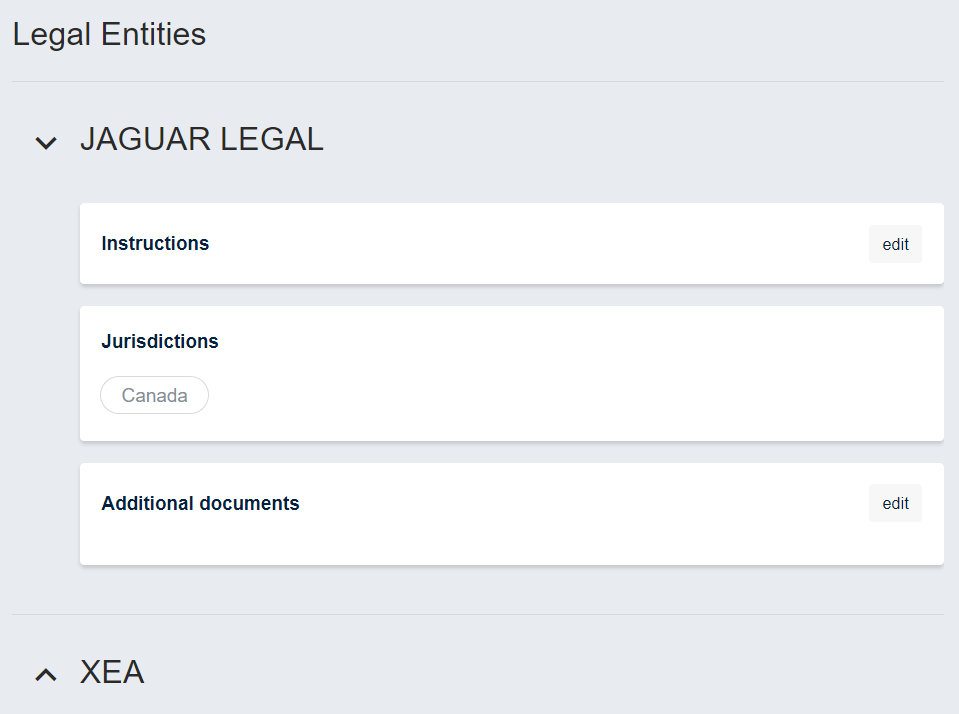
From the 'legal entities' section, you can view all legal entities related to the background check. Click on the legal entity you want to manage in order to open the detailed view. From this view you can upload instructions and additional documents by clicking on the 'edit' button. These documents will be accessible to the legal entity.
Section Legal entities
Manage the section 'Documents Provided by your organization RDD Team'
From this section, you can:
- Upload a 'BC Findings and other documents' by clicking on the 'edit' button.
- Download a 'BC Findings and other documents' by clicking on the document you want to download.
- Remove a 'BC Findings and other documents' by clicking on the 'edit' button.
Manage the section 'Documents for RDD team'
From this section, you can:
- Upload a 'Third-party documents' by clicking on the 'edit' button.
- Download a 'Third-party documents' by clicking on the 'edit' button.
- Remove a 'Third-party documents' by clicking on the 'edit' button.
Impersonate a user
User with the 'Pilot-GrpBusinessUnit-Compliance' role can impersonate other for checking purposes.
Start an impersonation
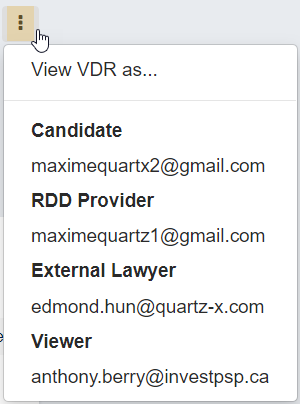
From a background check detailed view, click on the menu button on the top right of the screen. Then click on the user you want impersonate.
Impersonation screen
Stop an impersonation
From an other user view, click on the 'exit' button on the top of the screen to stop impersonation.
Button to stop impersonation
