1. Survey management
In this article you will learn how to set up and send a survey, and how to analyze its responses.
- Creating a campaign
- Finding a campaign
- Setting-up a campaign
- Sending a campaign
- Viewing campaign responses
The survey management feature is useful for collecting information
Creating a campaign
From the QuartzGOV homepage, click on the 'Survey' button inside the 'Others' module. From there, you can click on the 'Add campaign' button from the survey main menu. A survey creation screen should appear.
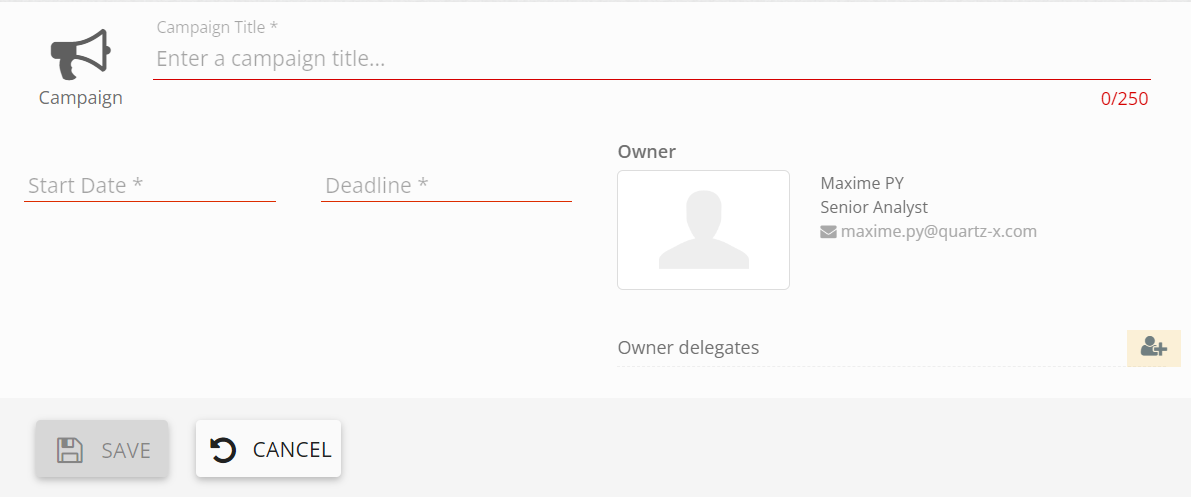
In order to create a survey campagin, you will need to complete the following information:
- Campaign title;
- Start date and deadline;
- Add owner delegates if necessary;
- And click on the 'save' button to record the campaign.
Survey campaign creation screen
After saving the campaign, it will be created and recorded in the system. If you want to send it to other users, you will first need to configure it.
Finding a campaign
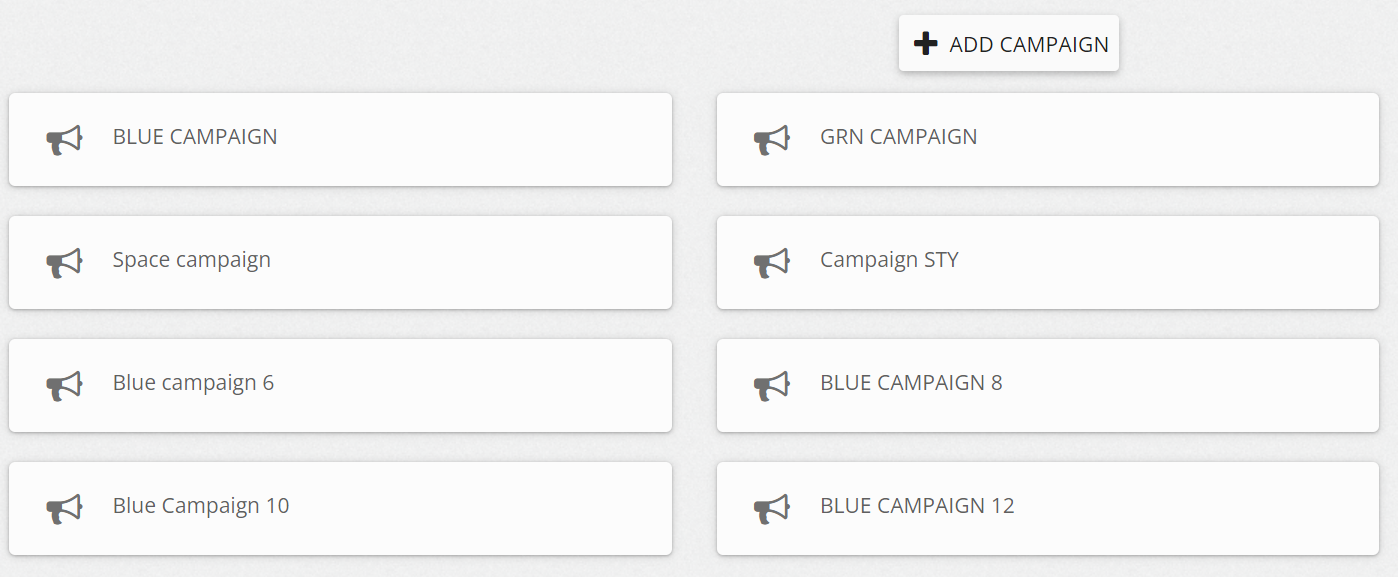
From the QuartzGOV homepage, click on the 'survey' button inside the 'others' module. A survey menu will appear that lists all the campaigns.
Example of a survey menu
Setting-up a campaign
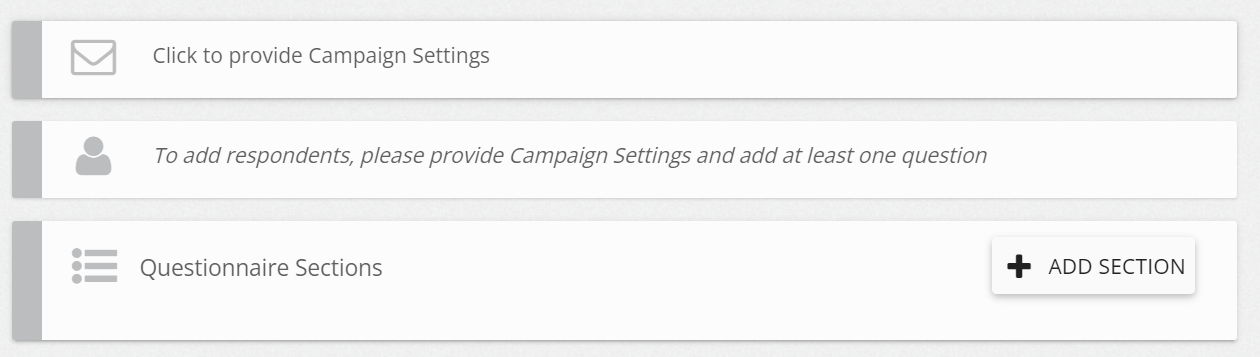
From the survey menu, click on the campaign you want configure. You can also configure your campaign directly when you create it. You have to follow 3 steps to be able to send the campaign : write the settings, add questions and manage respondents. See image below.
Main steps to follow
Campaign settings
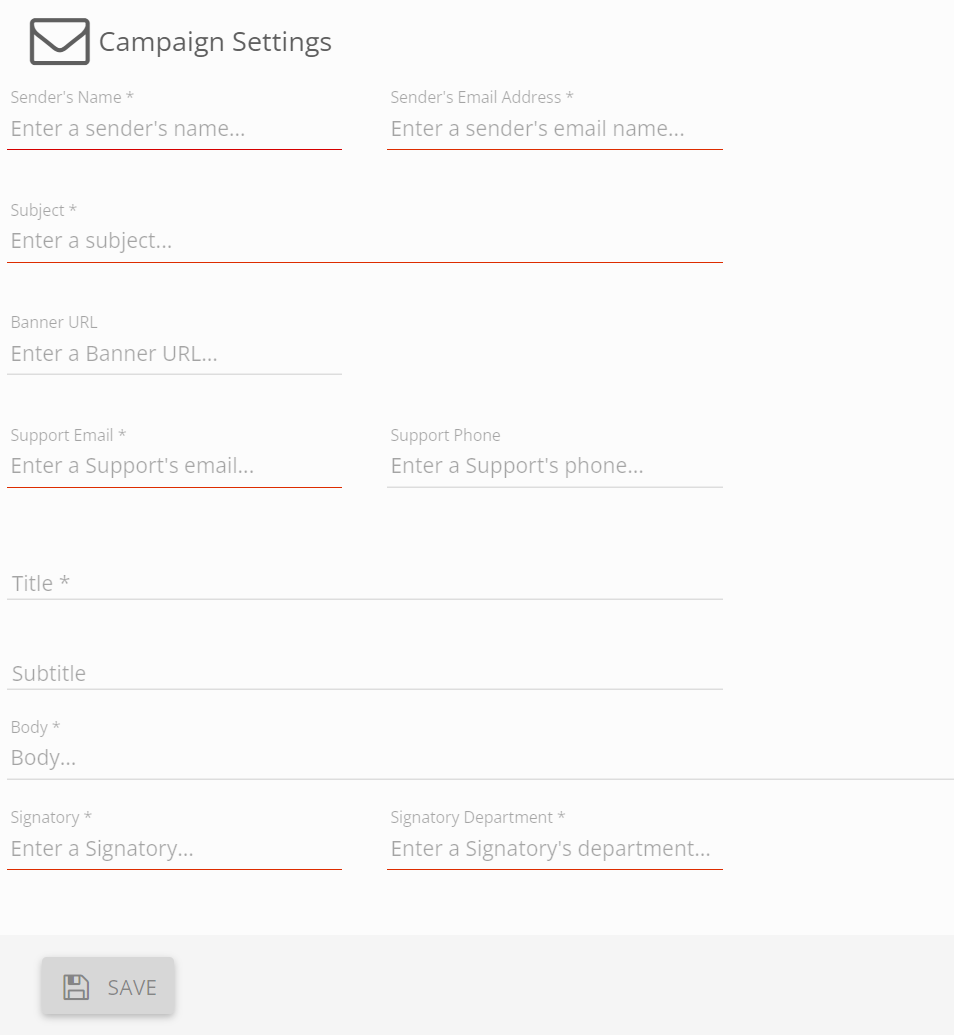
To configure the campaign, click the 'campaign settings' button to display the settings screen. From this screen you can:
- Add the sender's name and sender's email address;
- Describe the subject;
- Add an email address that respondents can use if they need support in the 'support email' field;
- Provide a title and a body;
- And, enter the signatory's name and department.
The following information is not mandatory, but can also be added :
- The URL for a banner;
- The support phone number;
- And, subtitles.
Campaign settings screen
Questionnaire sections
If you would like to add a section to your questionnaire, you can click on the 'add section' button. This will ask you to add a section number and title. You should also be able to add a description.
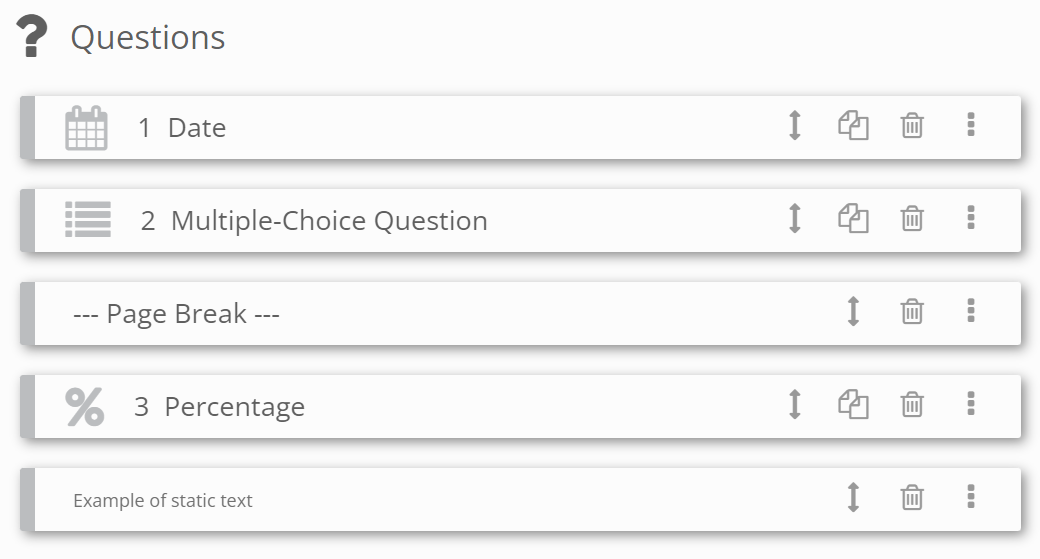
Inside any new section, you should be able to add a page break, question or static text.
Example of element types contained in a section

Add question
If you would like to add a question to your survey, you can click on the 'add question' button to select the question you want to add and fill out the fields required for your question.
You can repeat this operation as many times as you need to complete your survey.
Add page break
If you would like to add a page break to your survey, click the 'add page break' button. All questions created after a page break should appear on a new page in the survey.
Add static text
If you would like to add static text on a survey, click on the 'static text' button. Static text allows you to add descriptions to your survey.
Manage questions
If you would like to edit or modify questions in your survey, you can click on the 'manage questions' button to display the questions management screen. From this screen you can:
- Duplicate a question;
- Delete a question;
- And, use the drag and drop option to arrange the order of your questions.
Questions management screen
Add conditional question
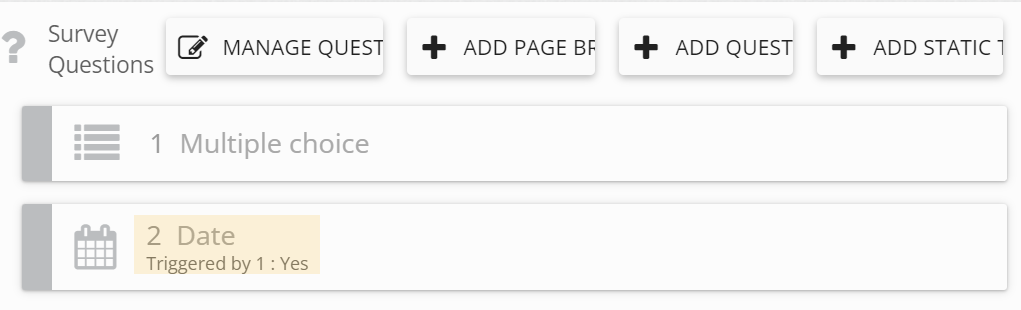
A conditional question is a question that appears depending on the respondent's answer on a previous question. The question related to a conditional question must be a closed question and must be located prior to the conditional questions.
If you would like to add a conditional question, click on the question that will trigger the conditional question to open its detail. From there, you can click on the 'add condition' button to select which question and modality should trigger your conditional question.
Example of a conditional question
You can repeat this as many times as necessary
Add conditional section
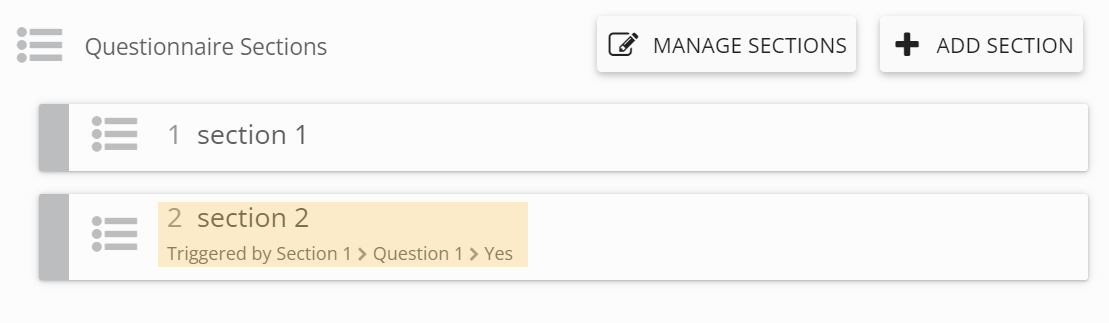
In addition to adding a conditional question, users can also add a conditional section to a survey. As was described in the previous section, you must create a closed question in order to be able to add a conditional section. To do this, click on the 'add condition' button and select which question and modality will trigger your conditional section.
Example of a conditional section
Managing respondents
If you need to manage respondents, click on the 'provide respondents' button to open the respondent management screen. From this screen you can:
- Add employees by clicking on the 'add employees' button. You can add only the employee you searched for or their subordinates;
- Add external respondents by clicking on the 'add others' button;
- Select multiple respondents by clicking on the 'select respondents' button;
- And, view the respondent status.
Respondent management screen
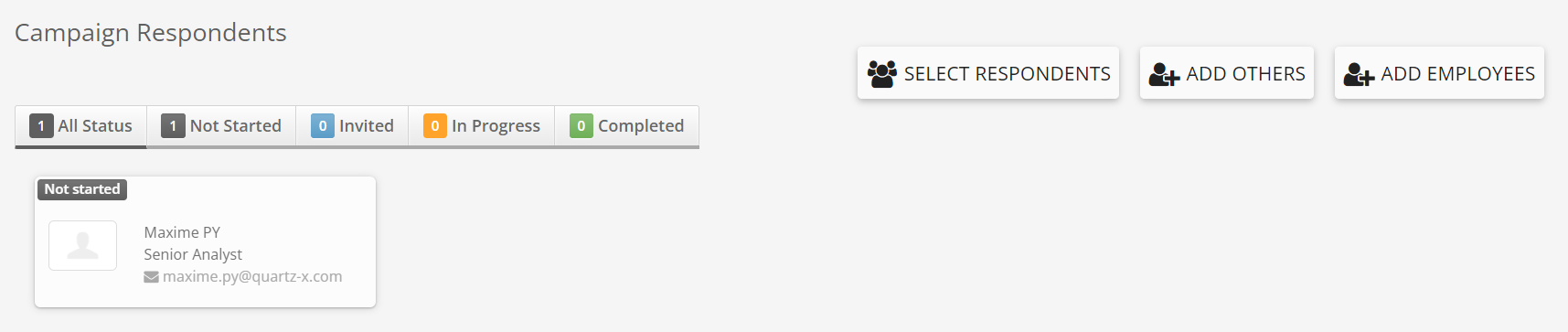
From the respondent management screen, you can click on a respondent card to:
- Send a reminder;
- Remove a respondent;
- Or, download the answers.
Sending a campaign
Once the respondent appears on the respondent management screen with the status 'not started', they can respond to the survey from the external platform
Sending a reminder to one person
If you want to send a reminder to a person, click on the person's card and click on the 'send reminder button.
Sending a reminder to several people
If you want to send a reminder to several people at the same time, click on the 'select respondents' button and select the respondents you want to send a reminder to. After selecting the people, click the 'send reminders' button.
Respondents will receive an invitation email with a link to access to the external platform.
Viewing campaign responses
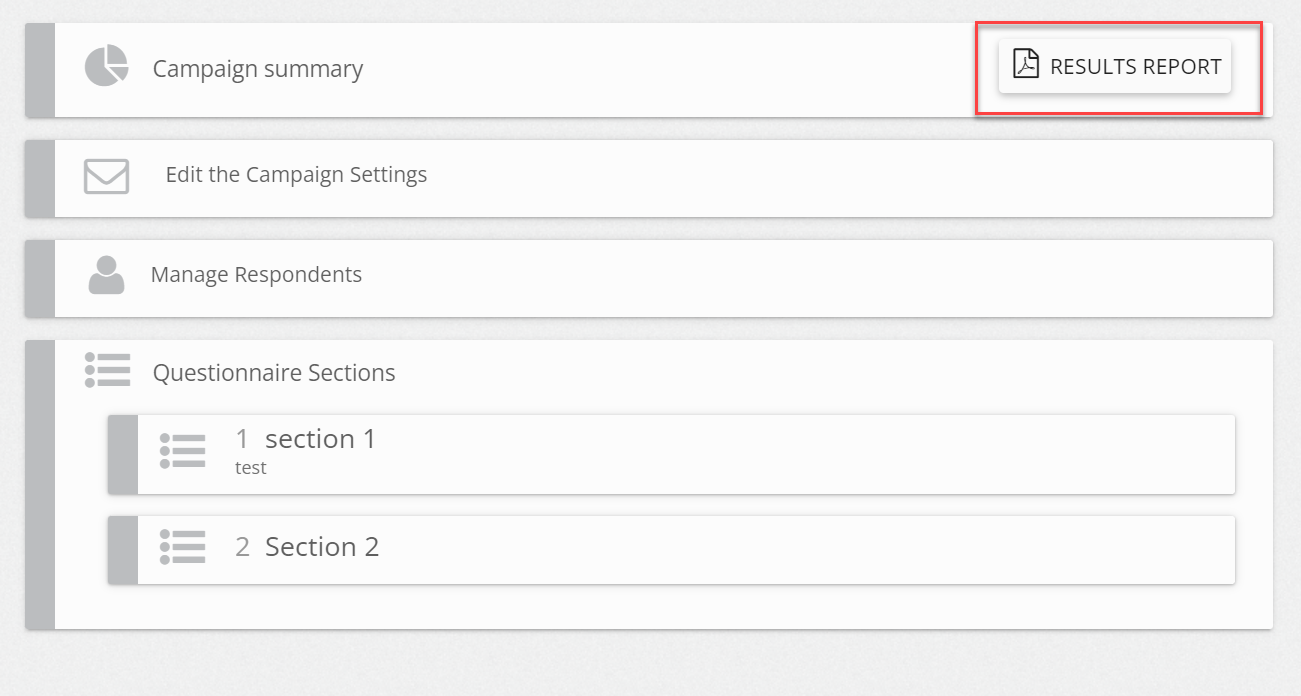
From the survey main menu, click on the survey responses you want to view and click on the 'results report' button. Select the modality of the report you want to download by clicking on it.
Survey detailed view