3. Respond to a survey as an external person
In this article you will find how to access the external platform in order to answer a survey.
Accessing the external platform
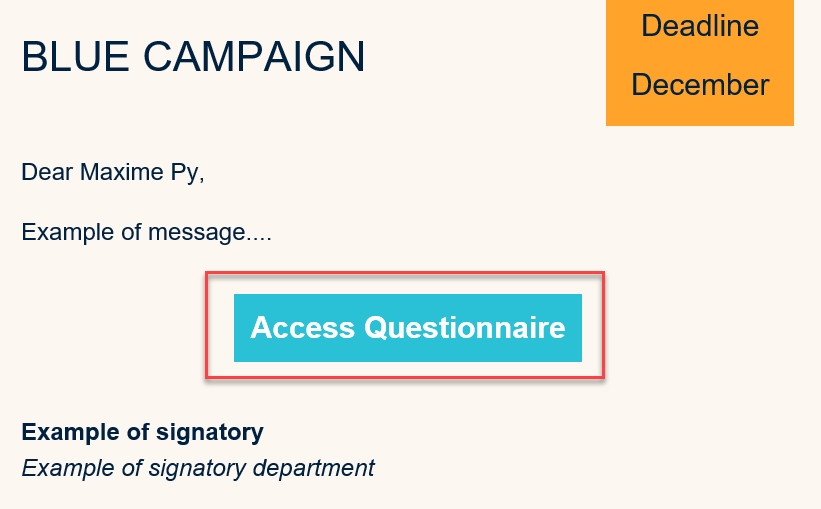
From your email, open the invitation email and click on the link.
Example of an email invitation
Login to the platform
Add your email address and your password and click on 'continue'
Login screen
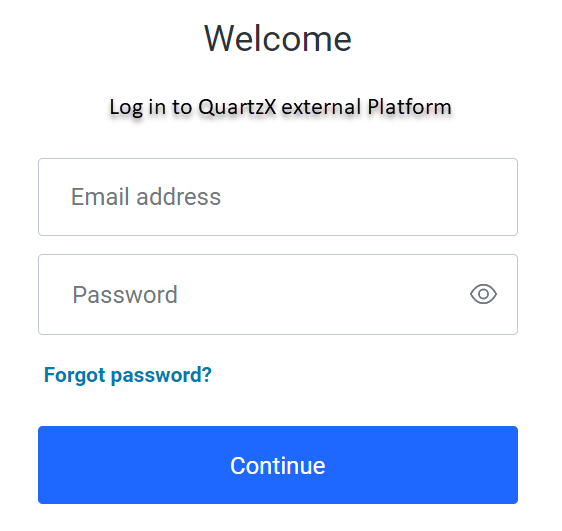
For your first connection, click on the 'forgot password' button and follow the steps to create your account.
Second authentication step
For the second authentication step, you can choose to receive a verification code by email or phone.
Second authentication with your phone
Select your preferred mode of authentication between 'text message' and 'voice call' and click 'continue'. After this is done, you should be able to enter the code and click on 'continue' again. The external platform homepage will appear.
Second authentication with your email address
If the previous method did not work, you can use your email address for authentication. Click on the 'try another method' and select the email option. After this is done, you should be able to enter the code you received via email and click 'continue'. The external platform homepage will appear.
Responding to a campaign
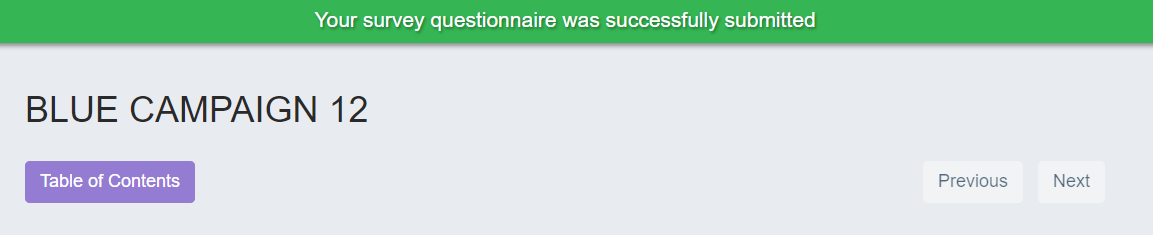
From the homepage of the external platform, click on the survey you want to respond to and answer the questions. Click on 'submit survey' to submit your answers. A message should appear at the top of the screen to let you know that the survey is successfully submitted.
Example of a successfully submitted message