1. Continuity analysis management
The continuity analysis management module allows you to create and update continuity analyses. These analyses can help prepare your organization in the event of a continuity problem such as a fire or an earthquake for example.
Create a continuity analysis
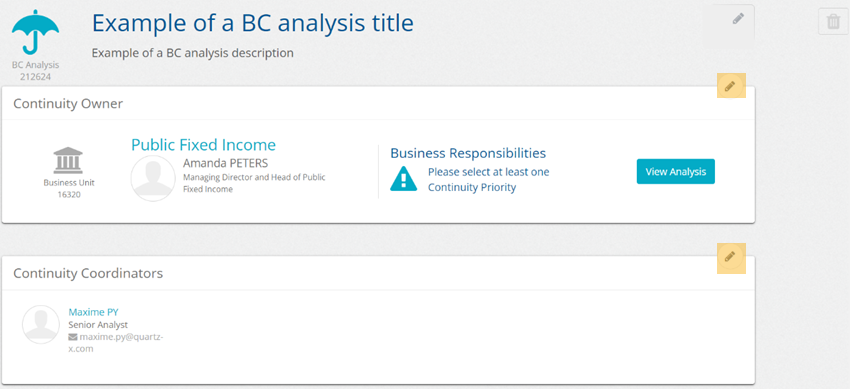
From the QuartzGOV homepage, click on the 'BC Analysis' button in the 'Create' menu. The Business Analysis creation screen will appear and you will be able to add a title and a description. After doing this, you can click on the 'save' button. This will allow you to see the Business continuity analysis as seen in the example below.
BC continuity detailed view
Add a continuity owner
From the 'continuity owner field', click on the 'edit' button and search the owner you want to add.
Add a continuity coordinator
From the 'continuity coordinators' field, click on the 'edit' button and search the continuity coordinator you want to add.
Find a business continuity analysis
From the QuartzGOV homepage, click on the 'Continuity analysis' button insight the 'Business continuity' module.
The business continuity main menu will appear. You can click on the business continuity analysis you are looking for to open the detailed view.
Manage business responsibilities
You can link business responsibilities to BC analyses, describe and order the responsibilities by priorities.
Link responsibilities to BC analysis
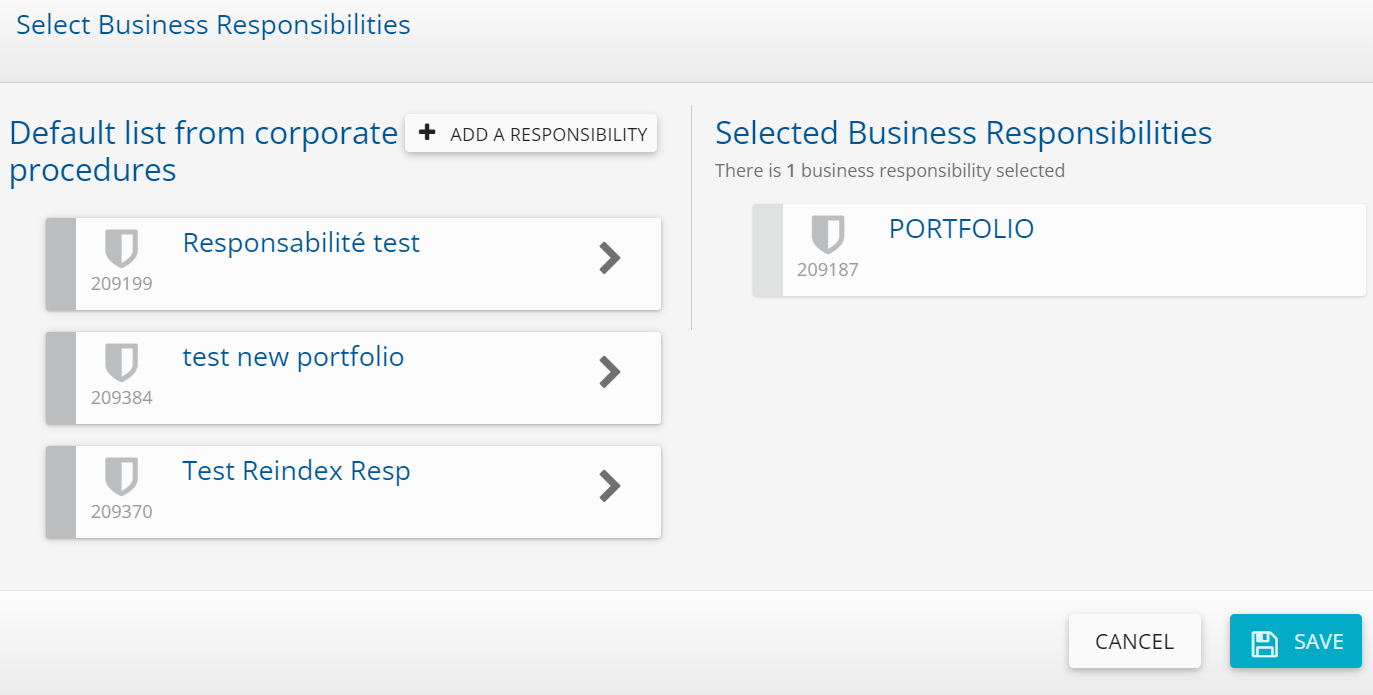
From the BC analysis detailed view, click on the 'view analysis' and 'add responsibilities' button. The 'Select Business responsibilities' screen will then appear :
- Click on 'add responsibilities' to create a new responsibility.
- Select responsibilities you want from the list.
- Click 'save'.
Selected responsibilities will appear on the right of the screen.
'Select business responsibilities' screen
Configure responsibilities
In order to configure responsibilities, go to the responsibility detailed view and click on the responsibility you want to configure. This will open the responsibility detailed view. From this view you should be able to:
- Add a disruption impact by clicking on 'add disruption impacts';
- Add a responsibility execution;
- Add a key staff and define their role;
- Add key systems;
- and, Add special needs
When adding responsibilities, it is required to configure each responsibility individually.
Prioritize responsibilities
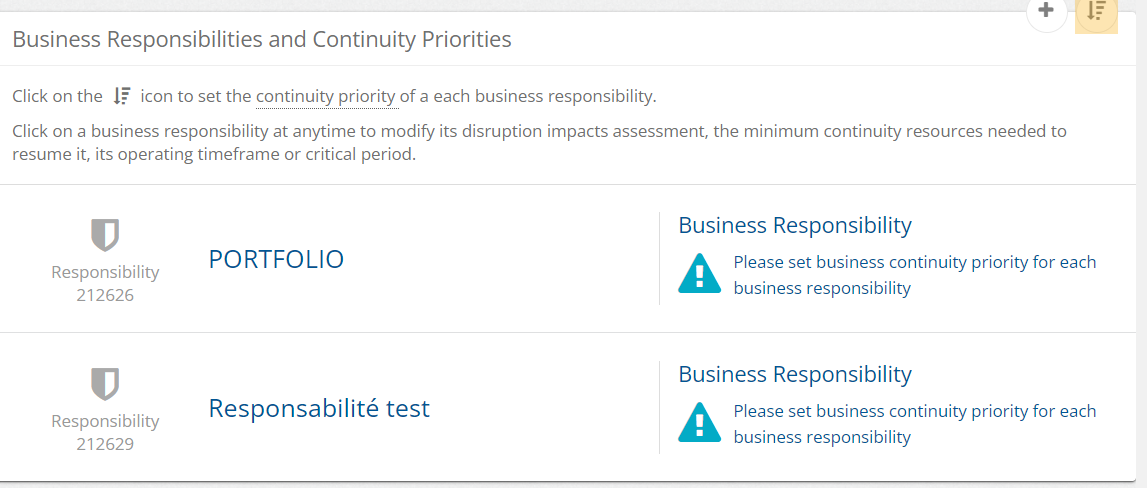
Once all responsibilities are configured, you can priorize them. From the responsibilities main list, click on the 'priorize' button on the top right of the list.
Responsibilities main list
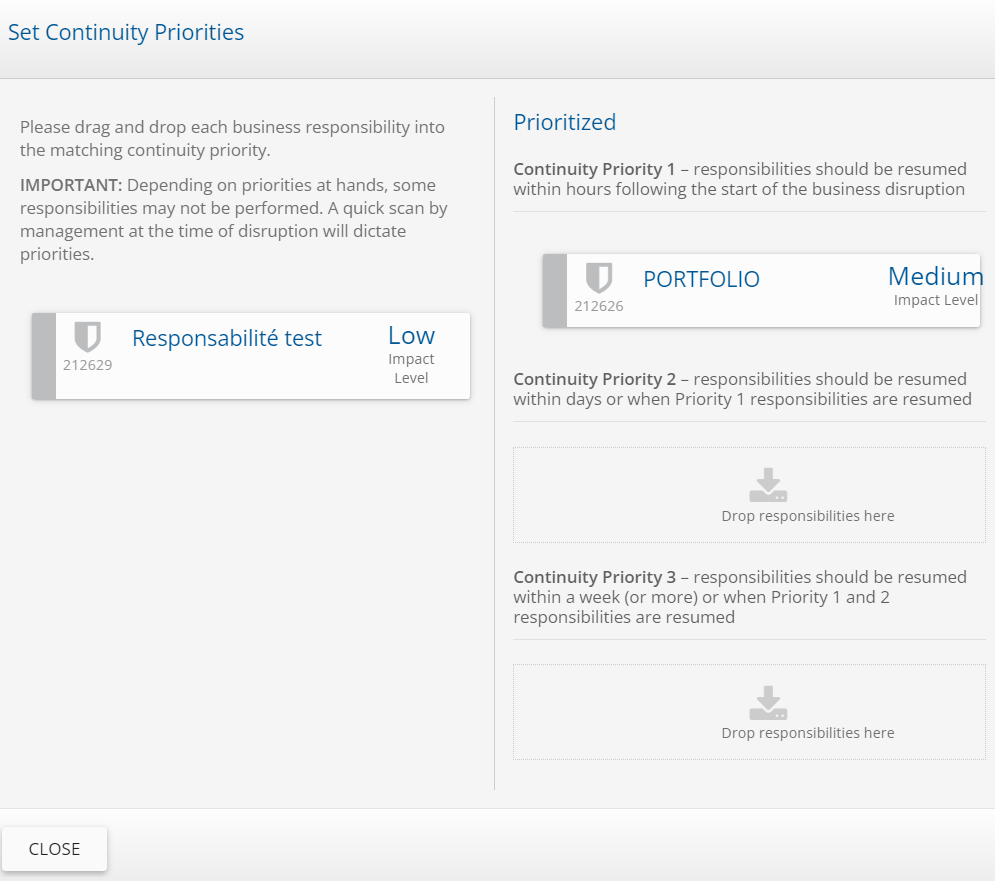
The 'set continuity priorities' screen will appear. From this screen you should be able to drag and drop responsibilities to prioritize them.
'Set continuity priorities' screen
Once all responsibilities are configured and priorized, your BC analysis will appear with the 'ready for assessment' status.
Edit a business continuity
You can update the information you added to your business continuity analysis by clicking on the 'edit' button.
Send an invite to business continuity coordinators
From the business continuity main menu, click on the menu button of the BC analysis you want to send and click on the 'send invites to BCC'. Business continuity coordinator will receive a notification.
Only business continuity analysis with the completed status can be sent. The BC analysis will appear with the status 'assessment in progress'.