1. Reputational due diligence management
In this article you will find how to create a deal and how to associate an investment or an oversight process to it.
Creating a new deal
From the quartzGOV homepage, click on the 'RDD Request' button insight the 'create' menu. The draft deal creation screen will appear. Fields with an asterisk are mandatory:
- Add an invest name
- Add an associate business unit
It is recommended to fill the other fields:
- Add a project name
- add a file manager, legal counsel and tax advisor
- Describe the capital structure
- Add a governance type
- Add sector of investment
- Select the status of the investment
- Complete the fields for the following sections : net asset value, call, distribution, commitment and geography of investment
Access to a draft deal main list
From the QuartzGOV homepage, click on the 'manage due diligence' button insight the 'Due diligence' module. Then click on the 'investments' button and 'unmanaged investment' in order to display the draft deal without related investments.
Once the draft deal is created, he appears in 'unmanaged investments' tab until you link investment to it.
Find a draft deal
Type the name of the draft deal in the search bar or use the filters.
Filters on the right of the screen allow you to search draft deals you want to see according to different criteria:
- You can use Business Unit if you know the business unit linked to the draft deal.
- You can use Governance if you know the governance status.
- You can use Investment sector if you know the investment sector linked to the draft deal.
A magnifying glass in each filter lets you to search for a specific item.
Manage a draft deal without investments
From the 'unmanaged' draft deal list you can edit, ignore a draft deal or assign an investment to it.
Edit a draft deal
Click on the 'menu' button of the draft deal you want to edit and click the 'edit' button. The update draft deal screen will appear. You can edit the field you want to update.
Ignore a draft deal
Click on the 'menu' button of the draft deal you want to ignore and click the 'ignore' button. The draft deal will appear with the 'ignored' status.
Assign a draft deal to an investment
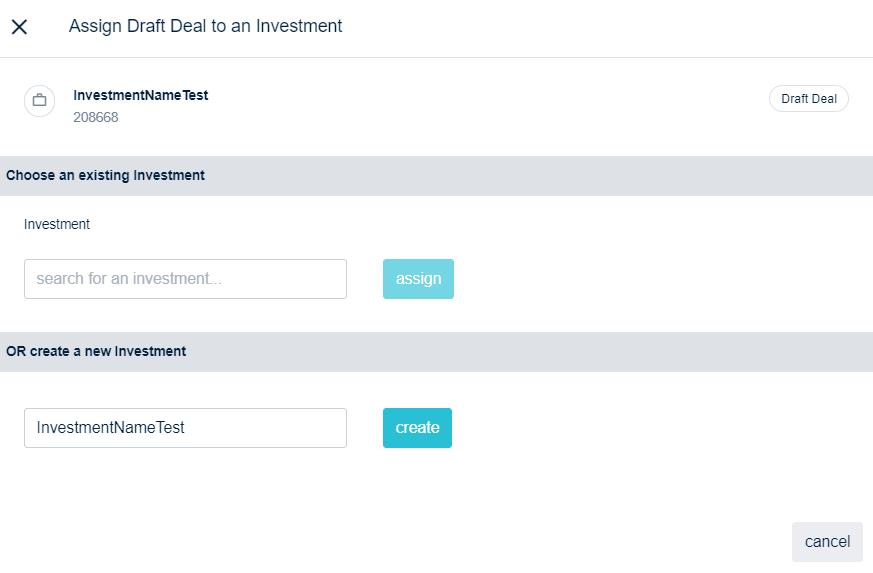
Click on the 'menu' button of the draft deal and click the 'assign' button. The assign screen will appear:
- You can choosing an existing investment and click on 'assign'.
- You can create a new investment and click on create.
Assign draft deal screen
Manage a deal with investments
Deals with investments appears in the 'ongoing investment' list.
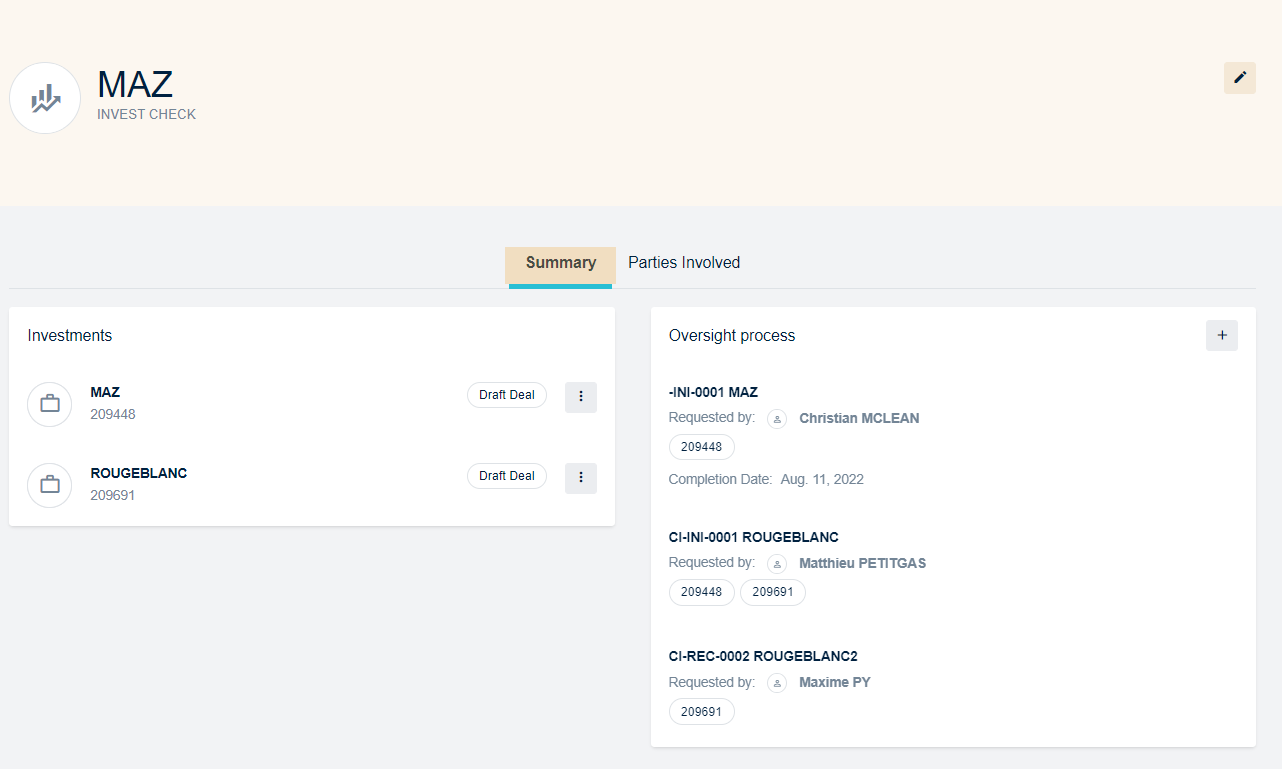
From the 'ongoing invstements' list, click on the deal you want to open in order to display the deal detailed view. This view contains a 'summary' tab and a 'parties involved' tab.
The deal summary tab
The summary tab allows to display investments and oversight process linked to the deal. From this view you can also update the name of the deal by clicking on the 'edit' button.
Summary tab from the deal detailed view
Manage a parties involved
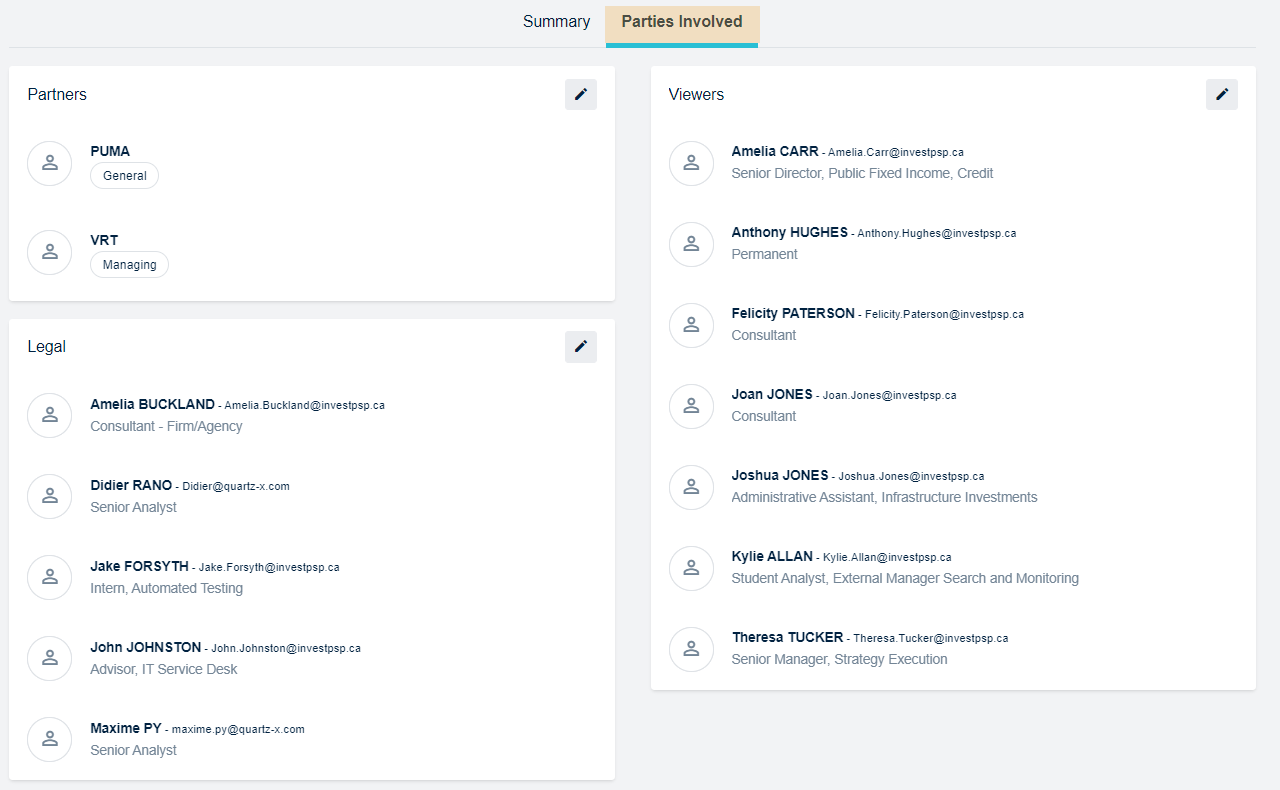
From the deal detailed view, click on the 'partie involved' to manage the stakeholders. From this tab you can:
- Add or remove partners
- Add or remove legals
- Add or remove viewers
- View the list of the parties involved
Parties involved tab from the deal detailed view
Manage an investment
From a deal detailed view, click on the investment you want to manage in order to open the investment detailed view. This view is constitued by
Edit an investment
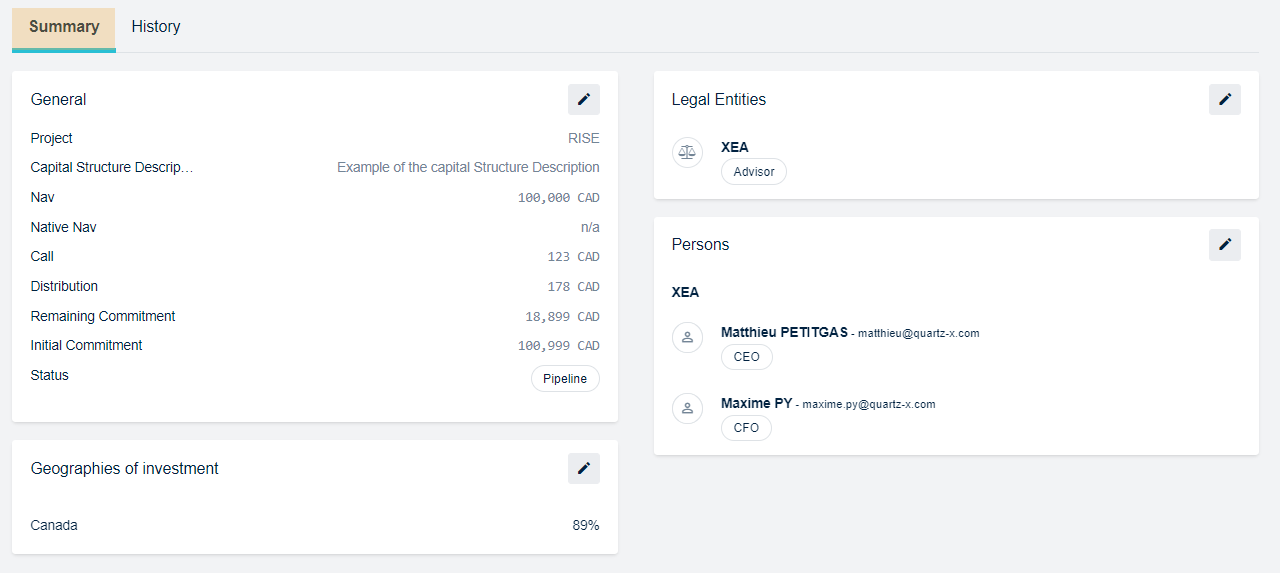
From a deal detailed view, click on the investment you want to complete in order to open the investment detailed view. This view countains a 'summary' tab and an 'history' tab.
The investment summary tab
From the summary tab you can:
- Edit general information about investement
- Edit the geographie of investment
- Add or remove legal entities
- Add or remove persons
- View the list of stakeholders
Summary tab from an investment detailed view
The history tab
The history tab allows to display the contact role history.
Manage an oversight process
From a deal detailed view, you can create and manage an oversight process.
Create an oversight process
Click on the 'add oversight process' button in order to open the oversight process creation screen:
- Select the type of the oversight process with the 'type' drop-down list
- Choose initial or recurrent
- Select an option in the 'title suggestion' drop-down list and add a title
- Fill the information fields
The oversight process will appear in the deal detailed view.
Edit an oversight process
From a deal detailed view, click on the oversight process you want to edit in order to open the oversight process detailed view. This view is made up with different sections.
Oversight process detailed view
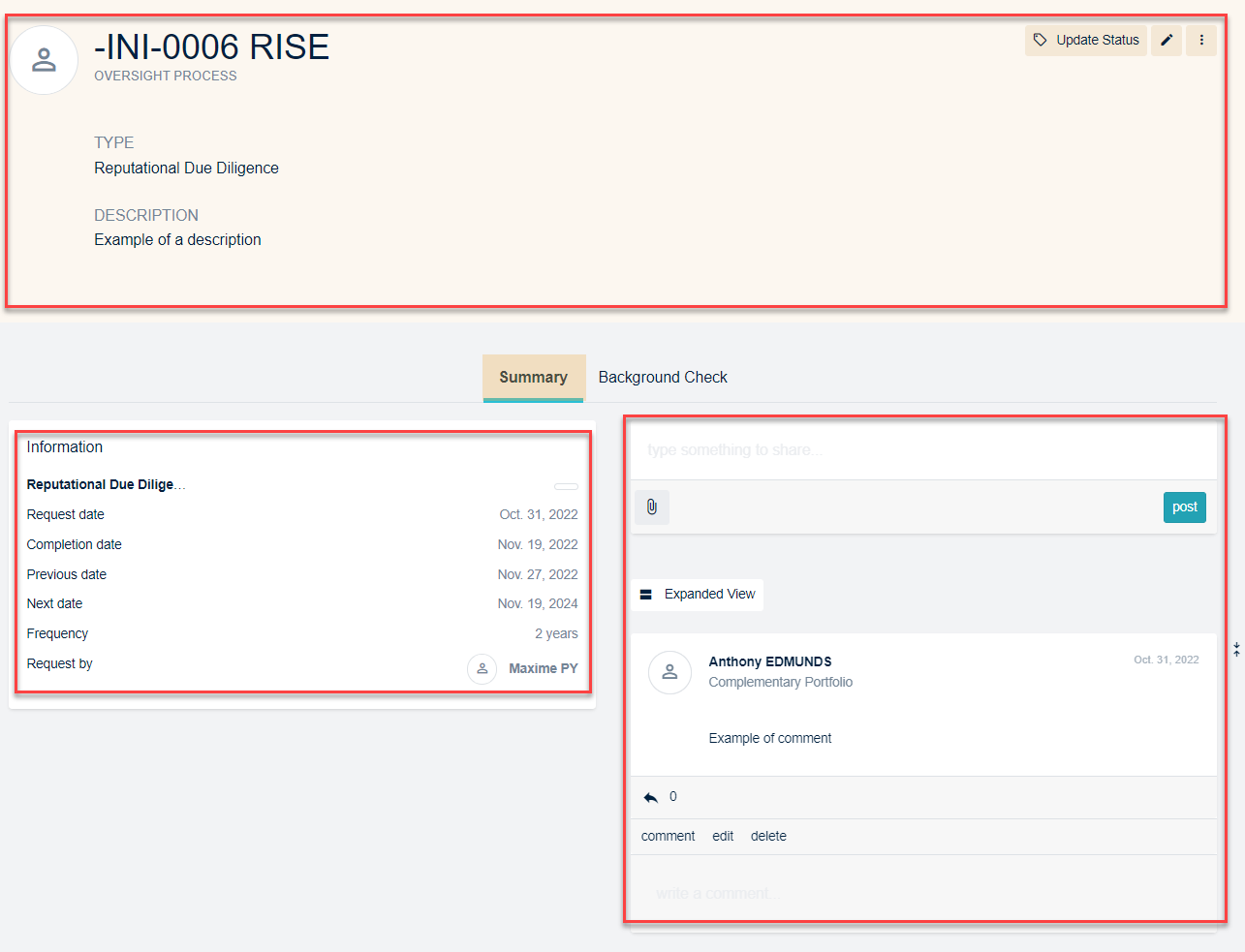
The header
The header present the main oversight process information. From the header you can:
- Edit main oversight process information by clicking on the edit button
- Update the oversight process status by clicking on the 'update status' button. This update will appear on the comment field.
- Delete the oversight process by clicking on the 'delete' button
- Invite candidates and RDD providers by clicking on the 'invite candidates and RDD providers' button
- Open the external platform by clicking on the 'open VDR' button
The information fields
The information fields display main oversight process information and comments.
Configure a background check
A background check is related to an oversight process. From an othersight process detailed view, click on the 'background check' button in order to access to the background check detailed view. This view allows to manage the stakeholders.
Manage contacts
Contacts are external peoples added in the 'persons' field from an investment detailed view.
Click on the 'manage contact' button in order to add or remove contact from the field 'available for inspection'. From this field you can:
- Exempt contact from background check by clicking on the 'exempt' button
- Remove contact from background check by clicking on the 'remove from background check' button
- Choose the type of the investigation you want for the contact with 'manage investigation' button.
- The investigation with consent form is an investigation in which contact provides documents by using the external platform.
- The investigation without consent form is an investigation without documents provide by the contact
Configure contact information
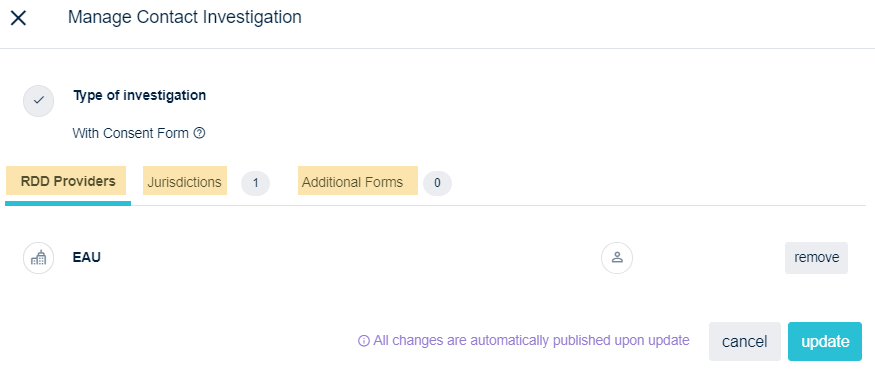
Once the type of investigation is selected, the manage contact investigation screen appear:
- Associate a RDD provider to your contact with the 'RDD provider' tab
- Associate juridictions with the 'juridictions' tab
- Provide an additional form if necessary with the 'additional forms' tab
Contact investigation management screen
Invite contact and RDD providers
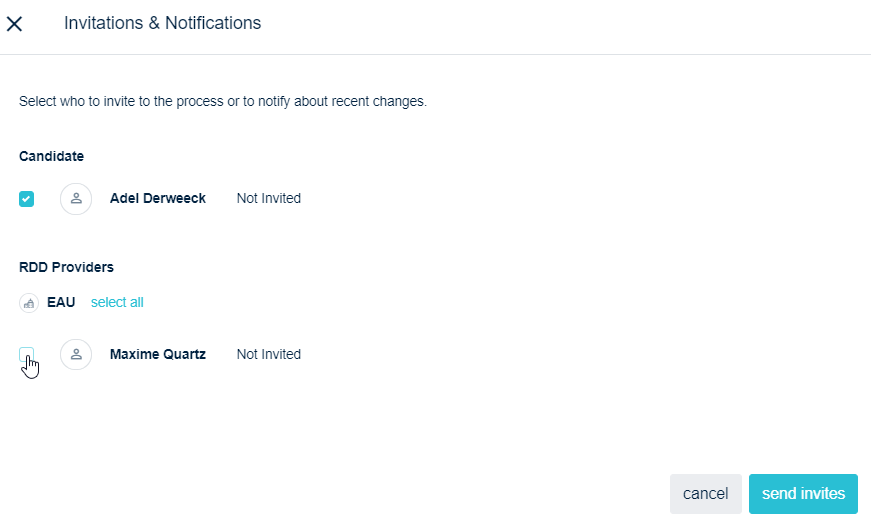
From the contact field, click on the menu button of the contact you want invite and click on the 'invitations and notifications' button. The invitation and notification screen will appear:
- Select contact and RDD provide you want invite and click on the 'send invite' button
Contact invitation and notification screen
Update contact configuration
From the contact field, click on the menu button of the contact you want update:
- Select 'manage investigation' to update the contact configuration
- Select 'view contact' to display the contact detailed view
- Select 'remove contact' to remove contact
Manage legal entities
Legal entities are entities added in the 'legal entities' field from an investment detailed view.
Click on the 'manage legal entities' button in order to add or remove legal entities from the field 'available for inspection'. From this field you can:
- Exempt legal entities from background check by clicking on the 'exempt' button
- Remove legal entities from background check by clicking on the 'remove from background check' button
Configure legal entities information
The manage legal entities screen allows you to:
- Associate a RDD provider to your legal entity with the 'RDD provider' tab
- Associate juridictions with the 'juridictions' tab
- Provide an additional form if necessary with the 'additional forms' tab
Invite legal entities and RDD providers
From the legal entities field, click on the menu button of the legal entity you want invite and click on the 'invitations and notifications' button. The invitation and notification screen will appear:
- Select legal entity and RDD provide you want invite and click on the 'send invite' button
Update legal entities configuration
From the legal entities field, click on the menu button of the legal entity you want update:
- Select 'manage investigation' to update the legal entity configuration
- Select 'view legal' to display the legal entity detailed view
- Select 'remove candidate' to remove legal entity
Manage RDD viewers
RDD viewers are peoples added in the 'RDD viewer' field from an oversight process detailed view.
Click on the 'manage RDD viewer' button in order to add or remove RDD viewer from the field 'available'. You can grant access by clicking on the 'grant access' button.
Revoke access
From the 'access granted' field, click on the 'revoke access' button.
Manage legal employees
Legals are internal lawyers added in the 'legals' field from an oversight process detailed view.
Click on the 'manage legals' button in order to add or remove legals from the field 'available'. You can grant access by clicking on the 'grant access' button
Revoke access
From the 'access granted' field, click on the 'revoke access' button.
Manage external lawyers
External lawyers are contacts created as 'external lawyers'
Click on the 'manage external lawyers' button in order to add or remove external lawyers from the field 'available'. You can grant access by clicking on the 'grant access' button.
Revoke access
From the 'access granted' field, click on the 'revoke access' button.
Use the dashboard
From the quartzGOV homepage, click on the 'manage due diligence' button insight the 'Due diligence' module in order to open the dashboard screen.
The 'To do' tab
The 'to do' tab displays:
- Oversight processes with documents provided by stakeholders that need to be reviewed.
- Oversight processes to complete.
Click on the menu button of the oversight process you want in order to:
- Open the external platform.
- Open the oversight process detailed view.
The follow-up tab
The follow-up tab displays the history of the oversight processes.
Click on the menu button of the oversight process you want in order to :
- Open the external platform.
- Open the oversight process detailed view.