1. Security provider assessment management
In this article you will learn how to create and update an information security provider assessment and how to associate OP/Contractual recommendation, recommendation and attestation.
The security provider assessment process is useful to oversee the relationship with the organization's partners.
Managing an information security provider assessment
The security provider assessments are defined each fiscal years. Users with the 'pilot-GrpBusinessUnit_AssessmentRecommendation' role can create, update and delete an information security provider assessment.
Creating an information security provider assessment
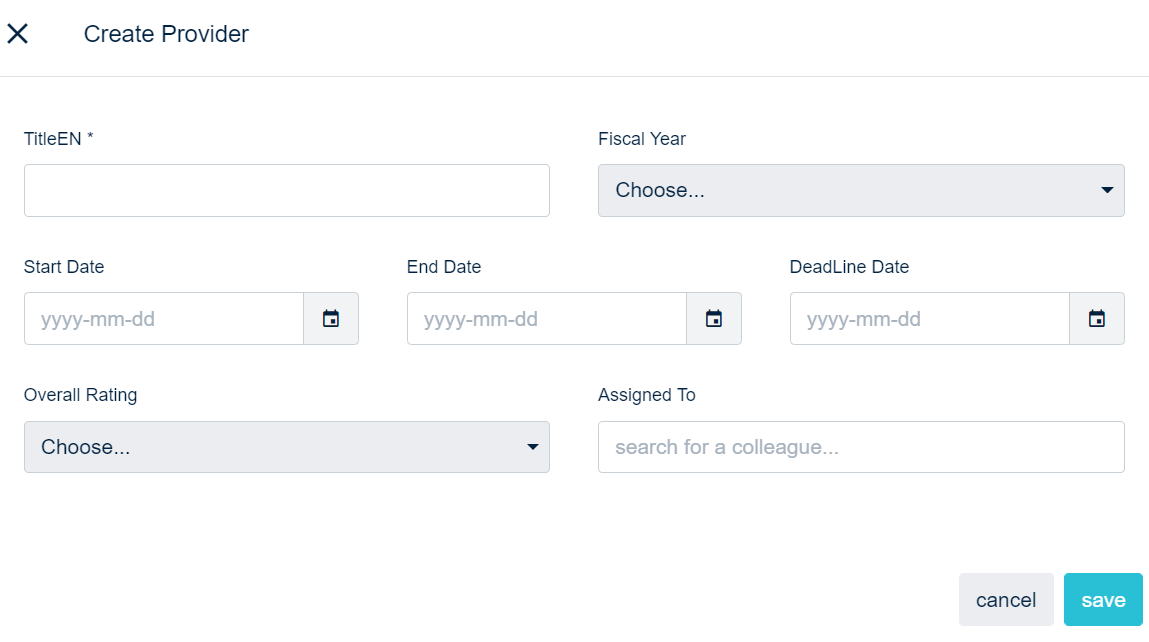
From the QuartzGOV homepage, click on the 'Information security provider assessment' button in the 'create' menu. An information security provider assessment creation screen should appear that allows you to:
- Give a title to your mandate;
- Select a fiscal year from the drop-down list;
- Pick a start date, end date, and a deadline;
- Add a rating to your mandate from the 'overall ratings' drop-down list;
- Assign a lead auditor by using the 'assigned to' search bar;
- And, click on 'save'.
Information security provider assessment creation screen
Accessing the information security provider assessment main list
From the QuartzGOV homepage click on 'Information Security provider assessment' in the 'Security provider assessment' module to display the list of information security provider assessment. This list should diplay the main information about each assessment.
Finding an information security provider assessment
Filters on the right allow you to search for a mandate based on different criteria:
- You can use Fiscal year if you know the fiscal year;
- You can use Assigned to if you know the lead auditor;
- You can use start date if you know the start date;
- You can use end date if you know the end date;
- You can use deadline if you know the deadline.
A magnifying glass is available in each filter to search for a specific item.
Editing an information security provider assessment
From the information security provider assessment main list, click on the menu of the information security assessment that you want to edit and click on the 'edit' button to display the information security assessment detailed view. From this screen you can edit it and update the fields that you want to modify.
Deleting an information security provider assessment
From the information security provider assessment main list, click on the menu button of the security assessment you want delete and click on 'delete'.
It is possible to delete an information security provider assessment only if no services are linked to it.
Managing a service
Services are related to an information security provider assessment. You can create, update and delete a service.
Creating a service
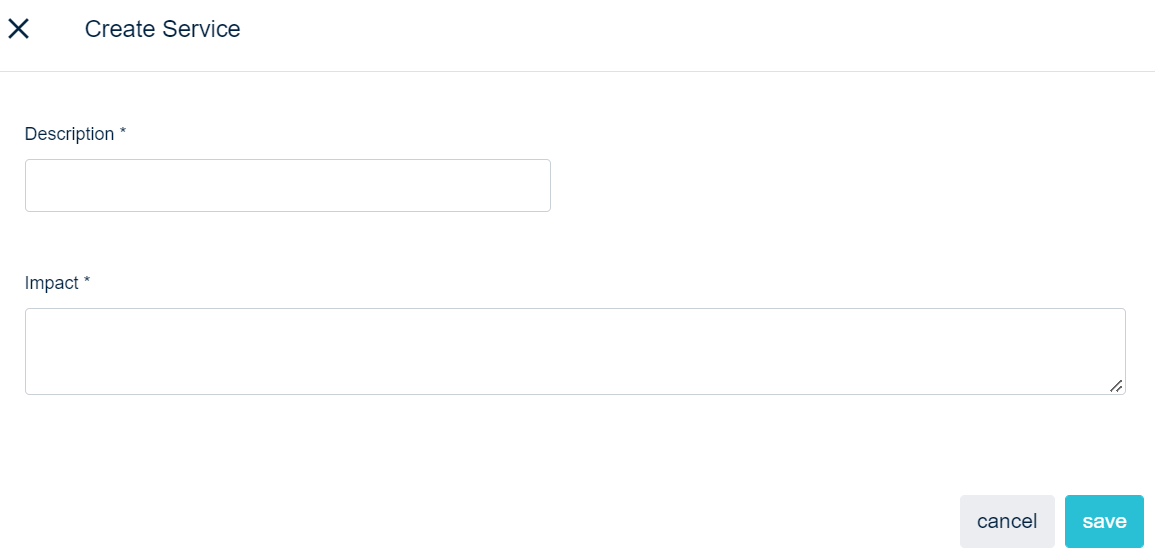
From the information security provider assessment main list, click on the 'menu' button of the security assessment in which you want to create a service and click on the 'create service' button. A service creation menu will appear where you can:
- Add a description;
- And, describe the impact of the service in the 'impacts' field.
Service creation screen
Finding a service
After a service has been created, the service will appear on the information security provider assessment detailed view. You can also click on the 'service' button in the 'Security provider assessment' module from the QuartzGOV homepage in order to display the service main list.
Editing a service
From the service main list, click on the service that you want to edit to open its detailed view. From this section you can edit the service and update the fields that you want to modify.
Linking or unlinking controls to a service
From a service detailed view, click on 'add related controls' to link controls to your service. If you want to unlink controls, simply click on the 'unlink' button for the control you would like to unlink.
Deleting a service
If you would like to delete a service, go to its detailed view and click on the 'delete' button on the top right of the screen.
It is possible to delete a service only if no OP/contractual recommendations are linked to it.
Managing an OP/contractual recommendation
OP/Contractual recommendations are related to a service and allow to recommend a change to the provider. You can create, update and delete an OP contractual/ recommendation.
Creating an OP/contractual recommendation
If you want to create an OP/contractual recommendation, go to the service detailed view and click on the 'add' button in the 'OP/contractual recommendation' field. The OP/contractual recommendation creation should appear. It is mandatory to complete the following fields to create an OP/contractual recommendation:
- Name;
- Summary;
- A recommendation owner;
- Recommendation type picked in a drop-down list;
- Recommendation priority from a drop-down list.
You can also add an owner delegate and click the ' handled by project' button if you want manage your recommendation by project.
OP/contractual recommendation creation screen
After it has been created, an OP/contractual recommendation will appear on the service detailed view
Accessing the OP/contractual recommendation main list
From the QuartzGOV homepage click on 'OP/contractual recommendation' in the 'Security provider assessment' module to display the list of OP/contractual recommendation. The list displays the main information about each OP/contractual recommendation.
Finding an OP/contractual recommendation
Filters on the right allow you to search OP/contractual recommendations based on your criteria. A magnifying glass on each filter lets you search using the filter.
Editing an OP/contractual recommendation
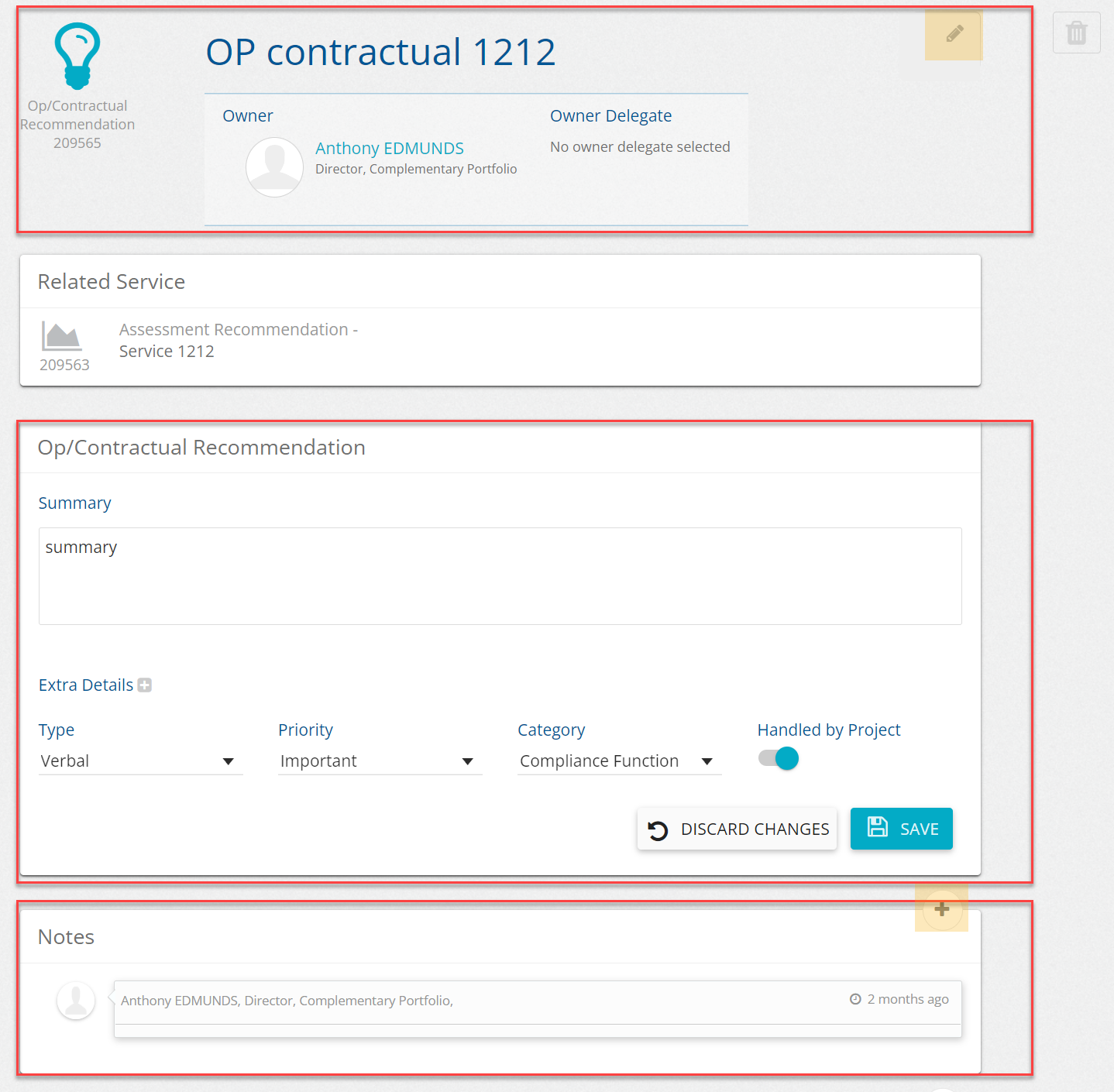
Click on the OP/contractual recommendation that you want to edit to open its detailed view. This screen is structured in different editing sections.
OP/contractual recommendation detailed view
The header
You can edit the header with the 'edit' button on the top right of the section. The following fields can be modified:
- Update the OP/contractual recommendation title;
- Add or remove an OP/contractual recommendation owner;
- Add or remove an OP/contractual recommendation delegate.
The 'OP/contractual recommendation' section
The OP/contractual recommendation section allows to update the summary and extra details.
The 'note' section
The 'notes' section allows users to add notes and attachments to the OP/contractual recommendation when necessary.
Delete an OP/contractual recommendation
If you want to delete an OP/contractual recommendation, go to its detailed view and click on the 'delete' button on the top right.
It is possible to delete an OP/contractual recommendation only if no recommendations are linked to it.
Managing a recommendation
Recommendations are related to an OP/contractual recommendation. You can create, update and delete a recommendation.
Creating a recommendation
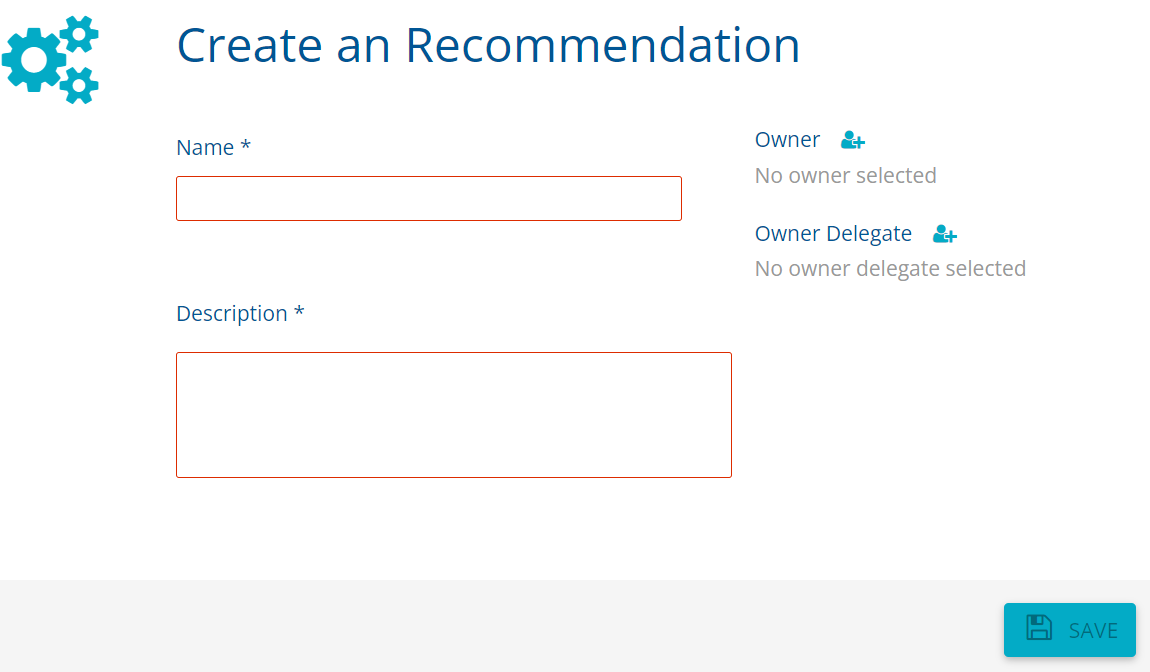
From the OP/contractual recommendation list, click on the 'add recommendation' on the OP/contractual recommendation you want to link to a recommendation. You can also click on the 'add' button in the 'recommendation' field from an OP/contractual recommendation detailed view. The recommendation creation menu will appear. To create a recommendation it is mandatory to add a name and a description. You can also add owner and owner delegate.
Recommendation creation screen
Accessing the recommendation main list
From the QuartzGOV homepage click on 'recommendation' insight the 'Security provider assessment' module in order to display the list of recommendations. The list displays the main information about each recommendation.
Finding a recommendation
Filters on the right allow you to search recommendation based on your criteria. A magnifying glass on each filter allows you to search for specific items.
Edit a recommendation
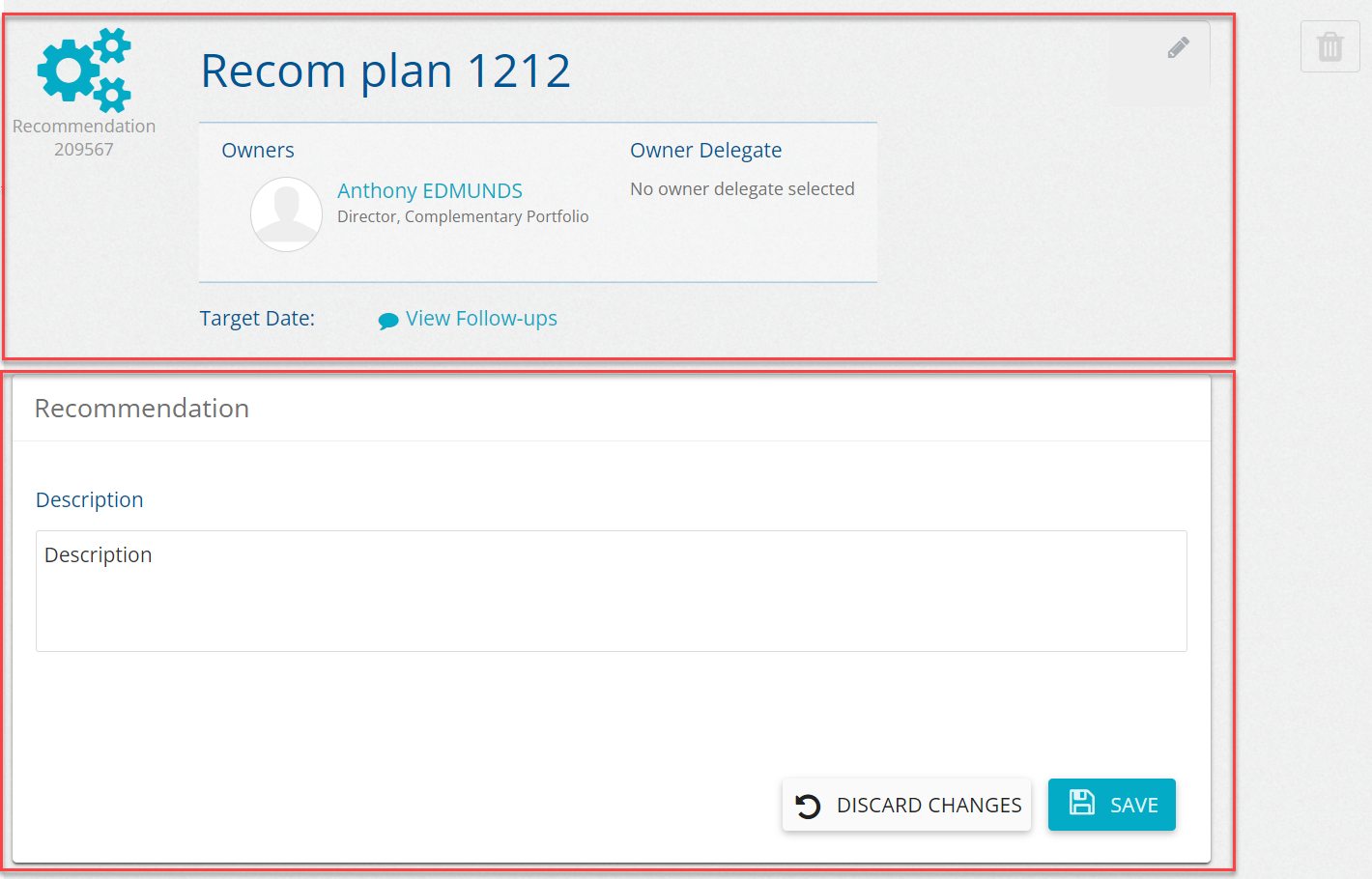
Click on the recommendation that you want to edit in order to open the recommendation detailed view. This screen is structured in different editing sections.
Recommendation detailed view
The header
Click on the 'edit' button on the header in order to update the action plan title, owner(s) and owner delegate.
The 'recommendation' section
The recommendation section allows users to update the description.
Deleting a recommendation
If you need to delete a recommendation, open the recommendation detailed view and click on the 'delete' button on the top right of the screen.
It is possible to delete a recommendation only if no attestation are linked to it.
Managing an attestation
Attestations are related to a recommendation. You can create, update or delete an attestation.
Creating an attestation
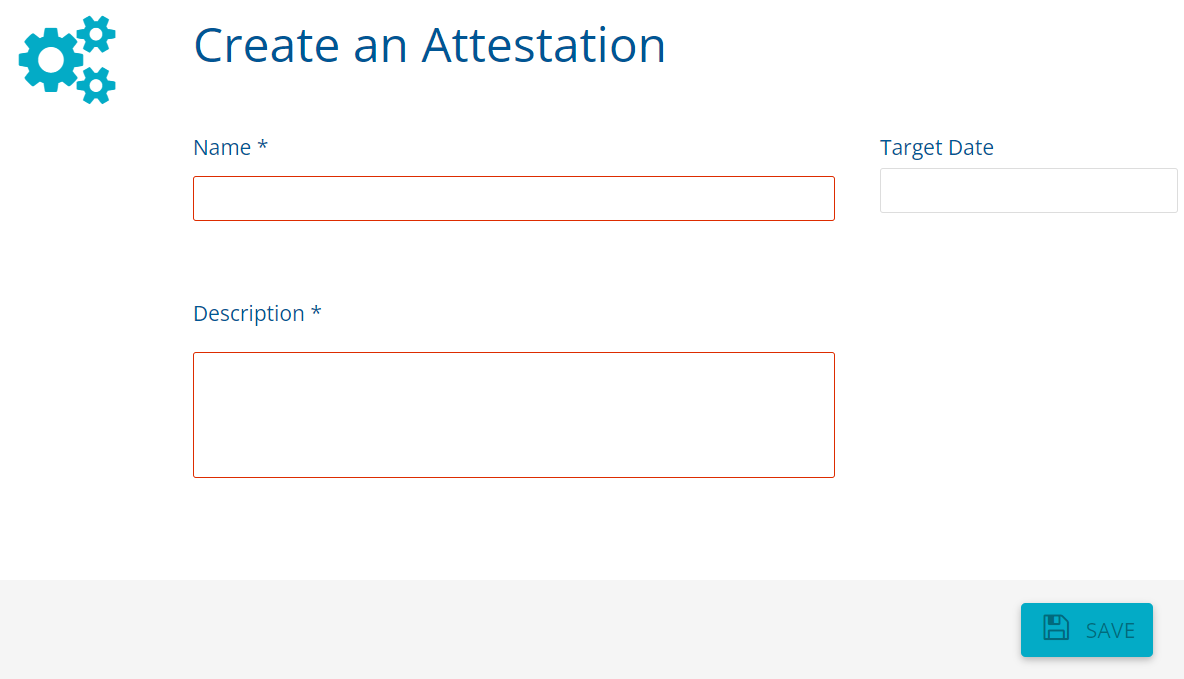
If you want to create an attestation, go to a recommendation detailed view and click on the 'add' button in the 'attestation' field in order to display the deliverable creation screen. The name and descriptions are mandatory to create an attestation. You can also add a target date.
Attestation creation screen
Find an attestation
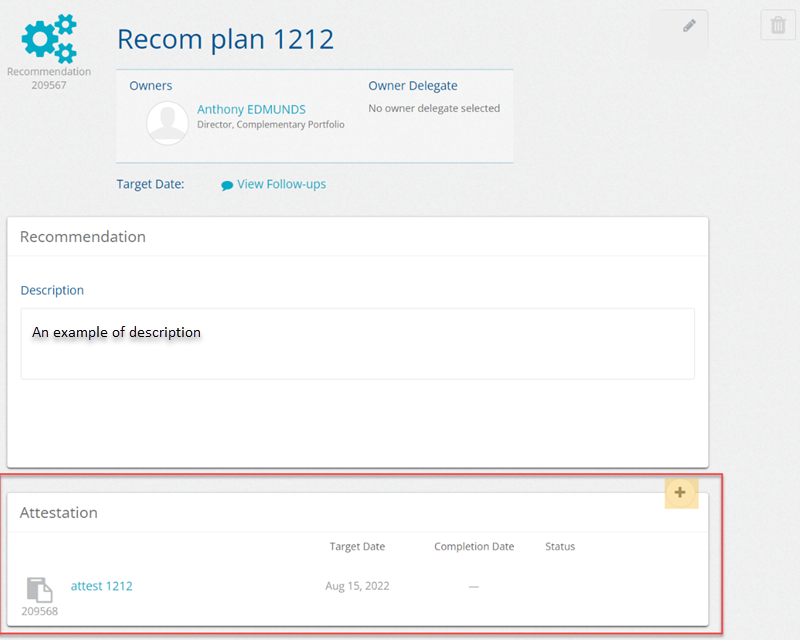
Once an attestation has been created, the attestation will appear on the recommendation detailed view. You can also click on the 'attestation' button inside the 'Security provider assessment' module to view an attestation.
List of the attestation linked to the recommendation 'Recom plan 1212'
Edit an attestation
If you want to edit an attestation, go to its detailed view and update the field that you want to modify.
Delete an attestation
From the attestation detailed view you want to delete, click on the 'delete' button.