1. Master and Key controls management
In this article you will learn how to create, edit or close Master and Key controls.
Creating a Master or a Key control
Users with the 'Pilot-GrpBusinessUnit-Governance' role can create Master and Key controls.
If you want to create a Master or Key Control, go to the QuartzGOV homepage and click on the 'Control' button in the 'create' menu. You can select 'Master control' or ' Key control' based on the type of control you want to create. This will open the a control creation screen that contains 3 tabs;
- General tab
- IAM System tab
- COSO links tab
General tab
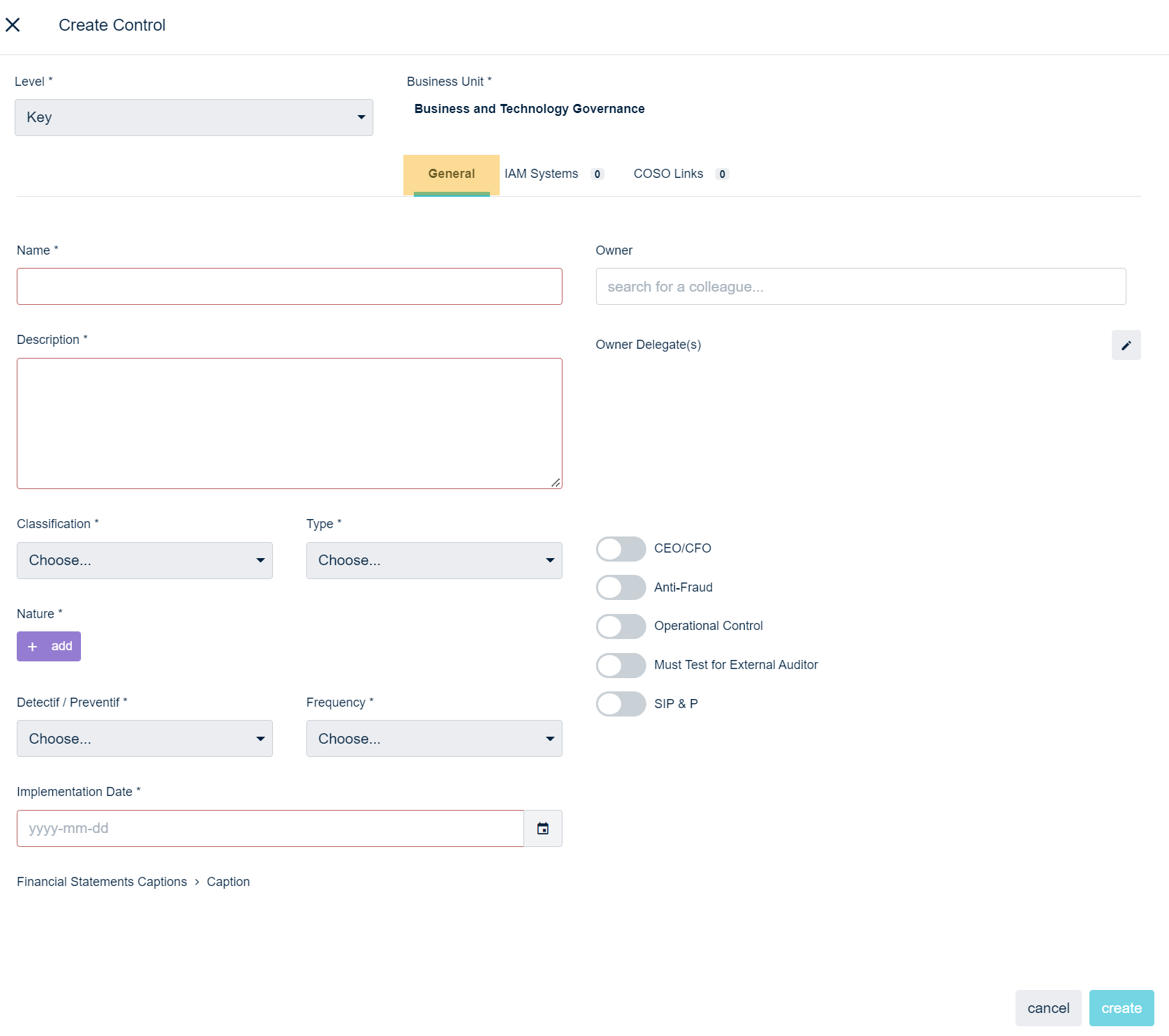
The general tab allows you to:
- Add a name and description;
- Choose the classification from the 'classification' drop-down list;
- Choose the control type from the 'type' drop-down list;
- Add a nature to the control with the 'add nature' button;
- Choose the status of the control with the 'detectif/preventif' drop-down list;
- Choose the frequency from the 'frequency' drop-down list;
- Add an implementation date;
- Add a CEO/CFO process;
- And, click the 'anti-fraud', 'operational control', 'Must test for external auditor' and 'SIP & P' button if necessary to activate these options.
Please note that if you create a Key control, you can also add a control owner and owner delegate.
Only people with the 'Pilot-ControlGovernanceCertificationOwner' role can be added as a key control owner
General tab of the control creation screen
IAM system tab
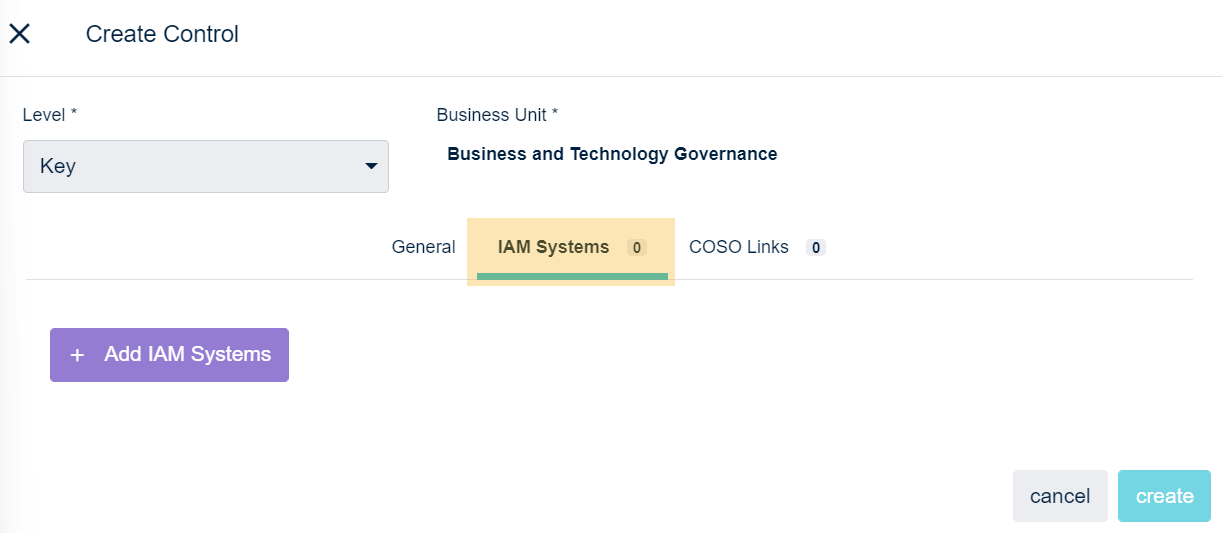
The IAM system tab allows you to add IAM systems by clicking on the 'Add IAM Systems' button.
IAM system tab of the control creation screen
COSO Links tab
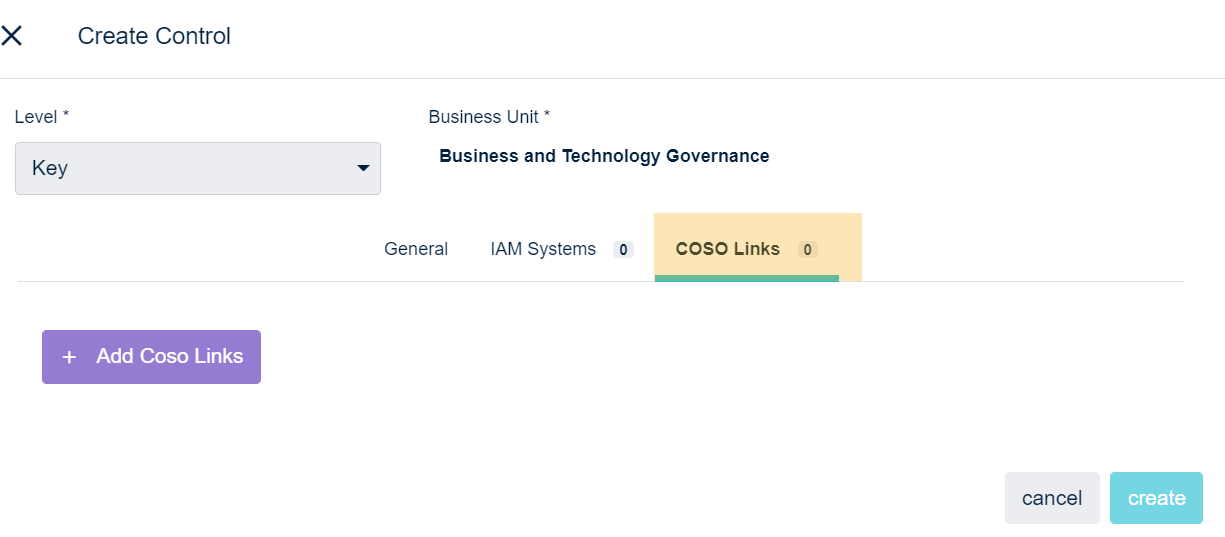
The COSO Links tab allows you to add COSO links by clicking on the 'add COSO Links' button.
COSO Links tab of the control creation screen
Accessing the controls list
To access the control list, go to the QuartzGOV homepage and click on the 'controls' button inside the 'Corporate information' module to display the control list.
Finding a Master control
From the controls list, select 'Master' in the 'control level' filter. You can also choose 'no' or 'yes' in the 'is closed' filter depending of the status of the control you are looking for.
Finding a Key control
From the controls list, select 'Key' in the 'control level' filter. From there, you should be able to:
- Use the 'Business Units' filter if you know the business unit linked to the control;
- Use the 'Control Owner' filter if you know the owner of the control;
- And, use the 'Is closed' filter if you know the status of the control.
Editing a Master or a Key control
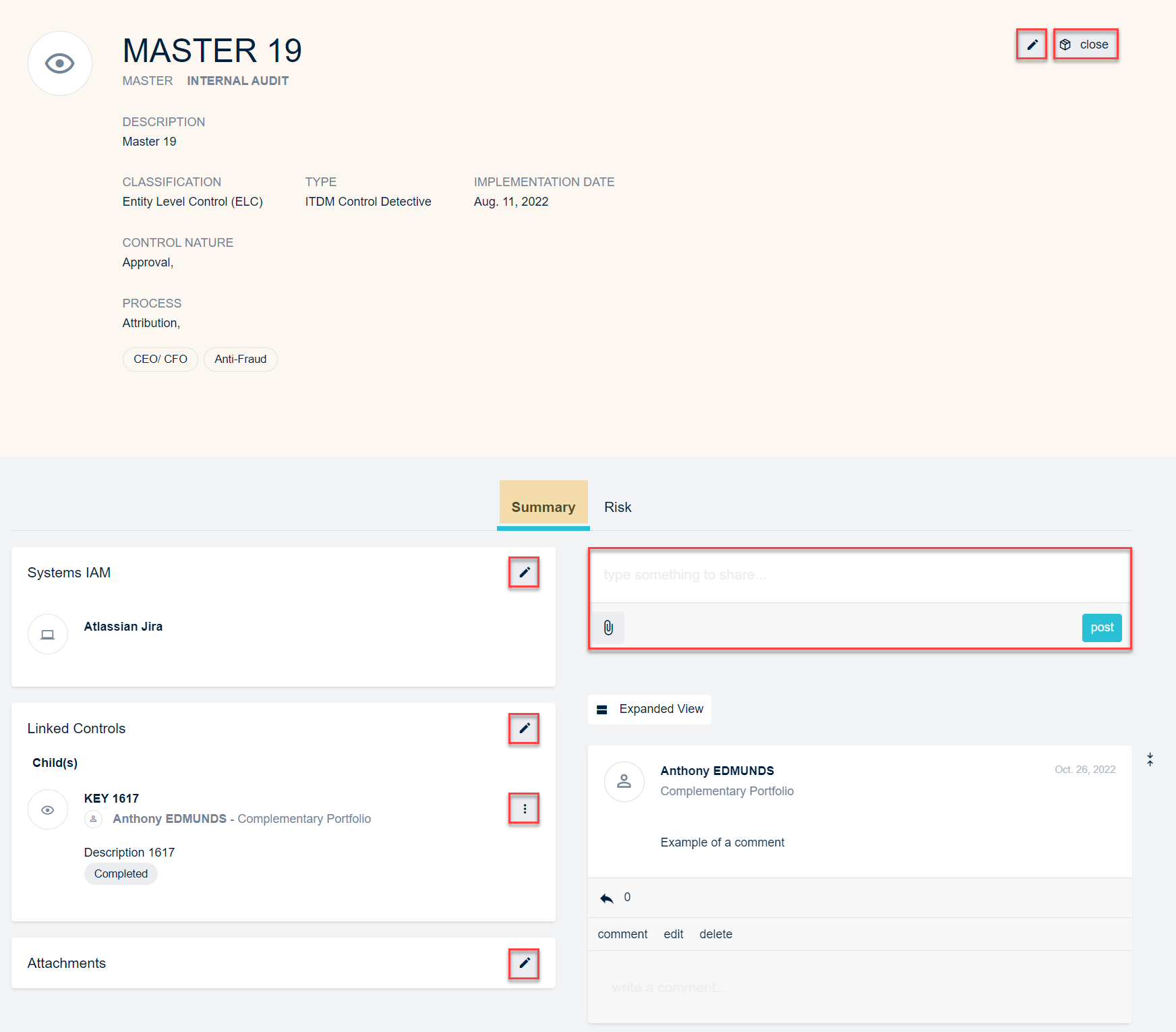
If you want to edit a Master or Key Control, go to the control list and click on the control you want to edit. This should open the control detailed view. This screen contains many sections.
Example of a control detailed view
The Header
The header incudes the main information about the control. You can click the 'edit' button to update the control information.
The Systems IAM section
The 'systems IAM' section displays IAM systems linked to the control. You can update them if necessary.
The linked controls section
The 'linked controls section' displays the other controls linked to the control you are reviewing. You can click the 'edit button' in order to add or remove linked controls. You can also click on the 'menu' button and 'view certification' of the linked control to display their certification.
The attachments section
The 'attachment' section displays attachments linked to the control and allows you to add or remove some.
The notes section
The 'notes' section allows you to add or delete comments with or without an attachment.
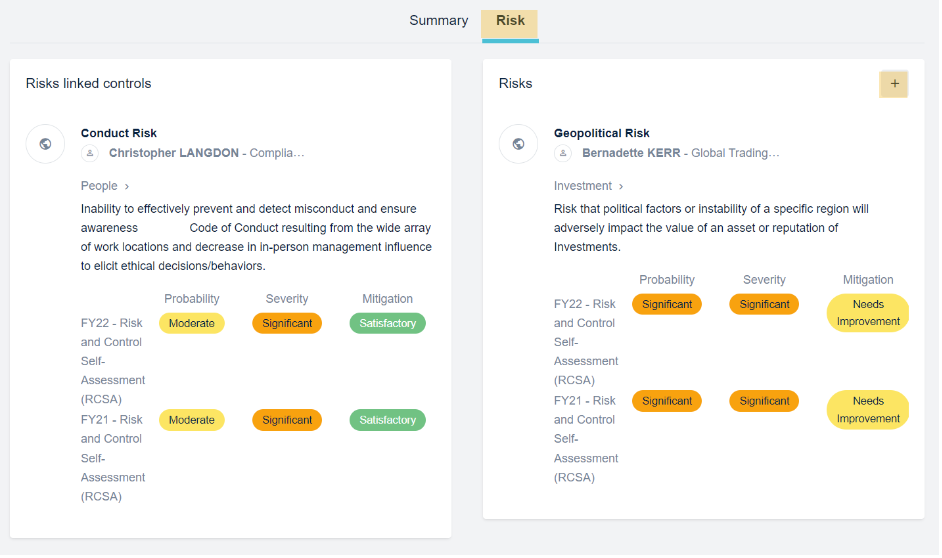
The risk tab
The 'risk' tab displays:
- The risks linked to the control in the 'risks' field and allows you to add or remove them by clicking on the 'add' button.
- The risks linked to a linked control in the 'risks linked controls'. For example, the master control 'Master 19' is the parent of the key control ' Key 1617'. Therefore, the risks linked to the 'key 1617' control will appear in the 'risks linked controls' field of the 'master 19'.
Closing a Master or a Key control
If you need to close a control, go to the control detailed view and click on the 'close' button.