2. Procedures management
This module in QuartzGOV allows you to read and manage procedures that define the main processes of your organization.
Reading a procedure
In QuartzGOV, users can read two types of procedures:
- Corporate procedures: general procedures about your organization.
- Operational procedures and guidelines: procedures specific to a certain function.
Accessing the procedures main list
From the QuartzGOV homepage click on 'Corporate procedure' or 'Operational procedures and guideline' in the corporate information module to display the list of procedures.
Finding a specific procedure
Filters on the right allow you to search procedures based on your criteria:
- You can use Procedure type if you know the type of the procedure.
- You can use Issuing business unit if you know the issuing business unit of procedure.
- You can use Issuing business unit head if you know the head of the business units linked to procedure.
- You can use Legal entities if you know legal entities linked to procedure.
- You can use Location if you know the location.
- You can use Referenced business unit if you know business units.
A magnifying glass in each filter lets you search for a specific item.
Finding specific information in a procedure
Procedures are constitued with different sections listed below.
The header
The procedure header allows you to:
- Find the title, the type and the effective date of the procedure.
- Change the language with english or french.
- Print the procedure.
- Download the procedure in word or PDF format.
- Share the procedure with a link.
The Summary
The procedure summary allows you to:
- Know legal entities linked to a procedure.
- Know procedure location.
- Understand the procedure objectives.
The Key roles and responsibilities section
The Key roles and responsibilities section allows you to understand which roles and responsibilities are present in a procedure.
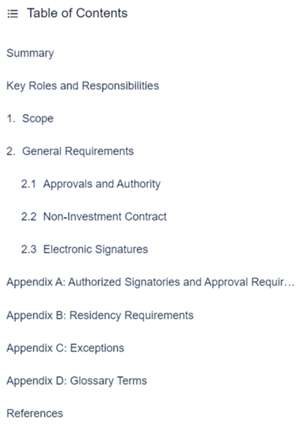
The table of contents
The table of contents section allows you to navigate through the chapters contained within a procedure.
Example of a table of contents
Managing a procedure
The following section explains how to create, update or delete a corporate procedure and operational procedure. It is intended for users with the 'Pilot-ProceduresManagement' role.
Creating a procedure
Users can create a corporate procedure or an operational procedure and guideline. Each procedure has a unique identifier code.
Creating a corporate procedure
If you want to create a corporate procedure, click on the 'procedure' button in the 'create' menu. A procedure creation screen will appear:
- Choose the language of the procedure (english and french);
- Select the 'Corporate procedure' category in the procedure type drop-down list;
- Add a title and fill in the other fields;
- Click on the 'Save' button.
Procedure creation screen
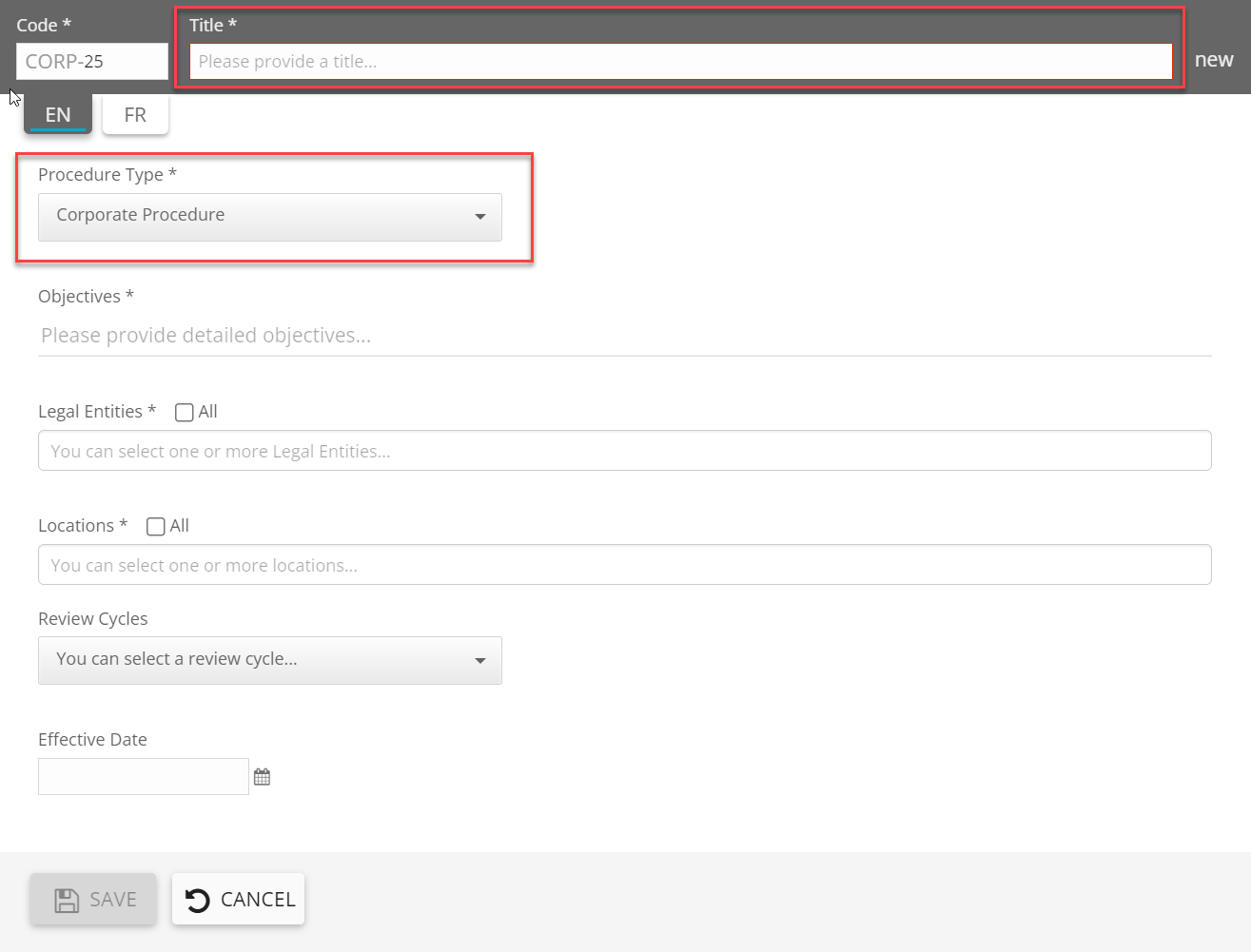
The creation procedure screen will appear.
Create a operational procedure and guideline
Click on 'operational procedures and guidelines' button from the 'create' menu. The operational procedure creation screen will appear:
*Choose the language between english and french.
- Add a title and fill in the other fields.
- Click on the 'Save' button.
Operational procedure and guideline creation screen
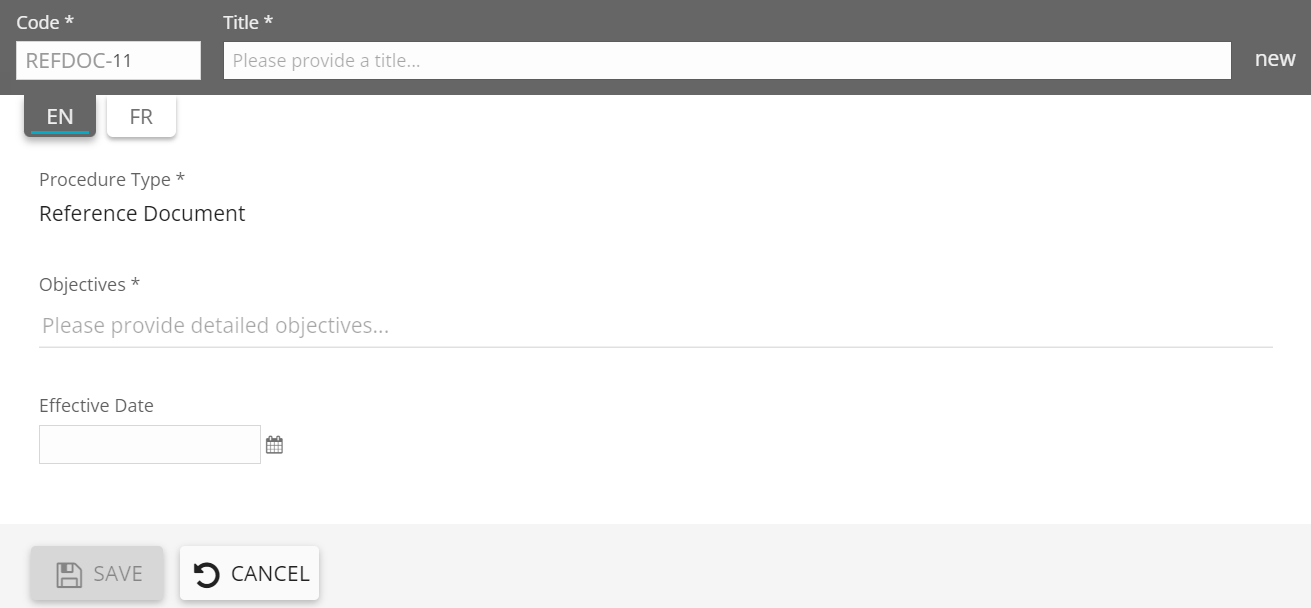
The creation procedure screen will appear.
Editing or updating a procedure
From the procedure list, open the procedure you want to edit and click on the 'Edit' button on the right of the procedure header.
Edit button on procedure header
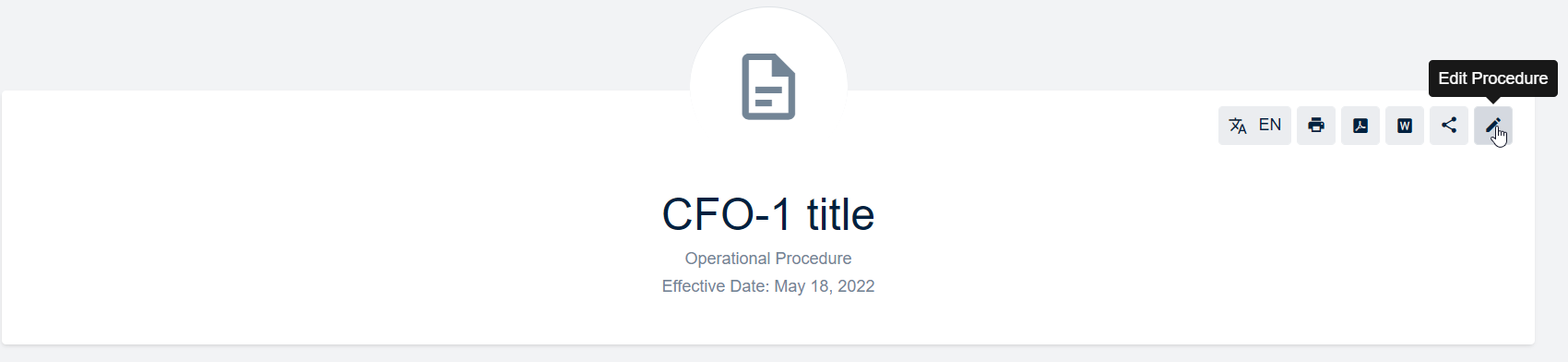
A procedure edition screens should appear that allows you to:
- Add content by adding a new section with the 'Add section' button;
- Edit existing content;
- View the status of the procedure;
- View the procedure history details with 'Edit details' button;
- Edit procedure access rights with the 'Edit Access Rights' button.
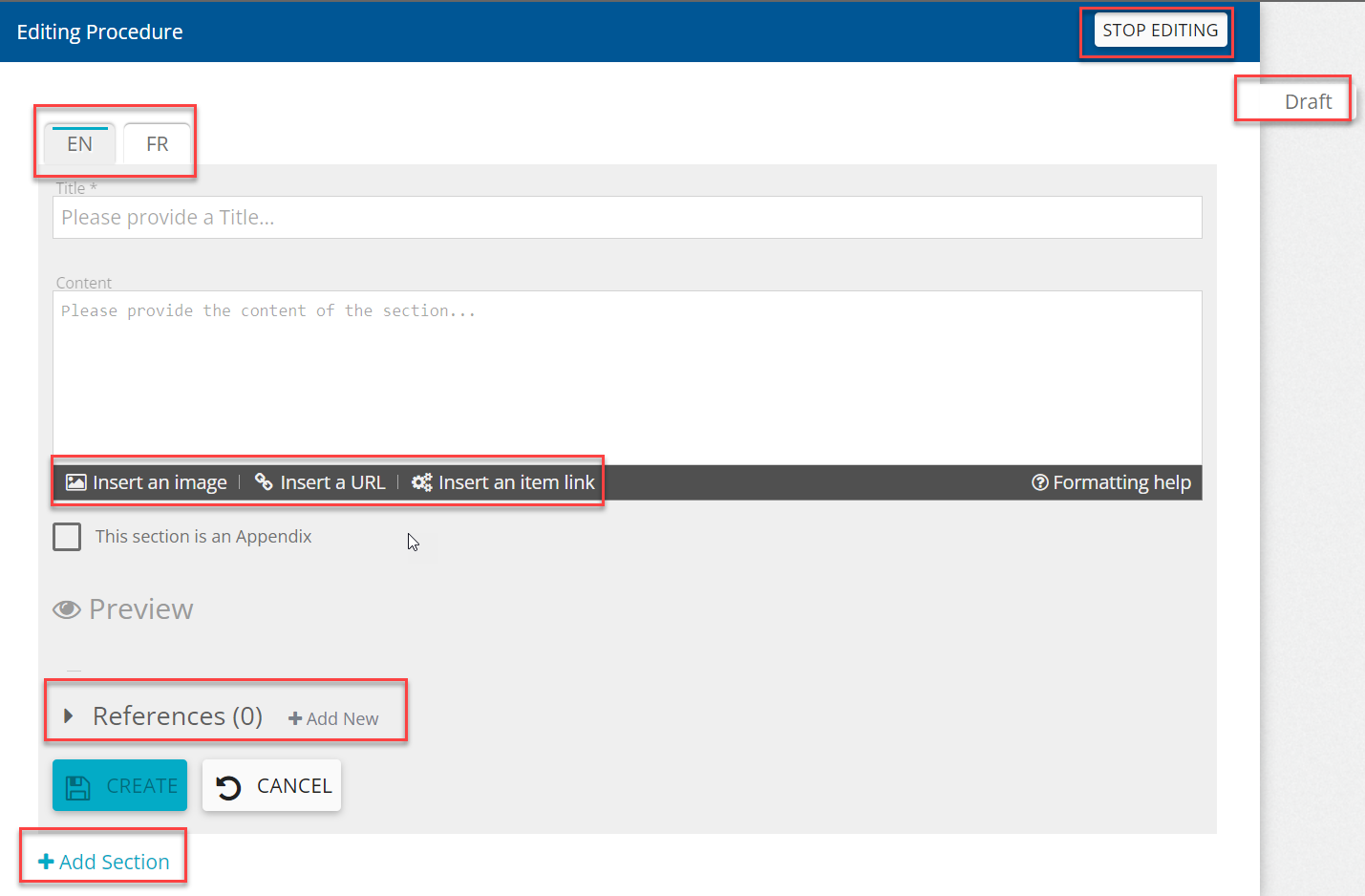
Editing procedure screen
Insert an image
You can insert an image in the procedure by clicking on the 'Insert an image' button.
Insert a URL
You can insert a URL in the procedure by clicking on the 'Insert a URL' button.
Insert an item link
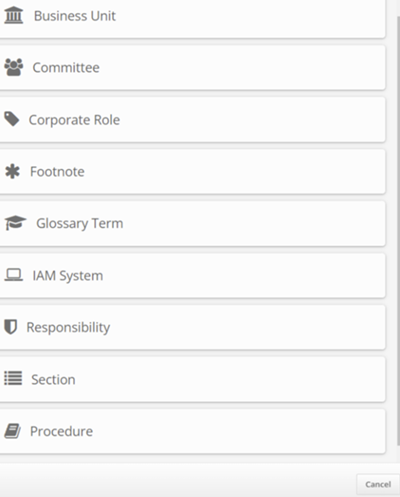
You can insert an item link in the procedure by clicking on the 'Insert an item link' button:
- Business unit button allows you to insert business units.
- Committee button allows you to insert committee.
- Footnote button allows you to insert footnote.
- Glossary term button allows you to insert glossary terms.
- Responsibility button allows you to insert responsibilities.
- Section button allows you to insert a link toward an other section of this procedure.
- Procedure button allows you to insert link toward an other procedure or an other procedure section.
Item links
Add references
You can add references like attachment, controls and process output in the procedure by clicking on the 'add new reference' button.
Stop editing
When your editing is complete, click on the 'Stop editing' button. The procedure will appear as a draft until its publication. Only users with the 'Pilot-procedureManagement' role are able to see procedure that are in the draft status.
Publishing a procedure
Request a review
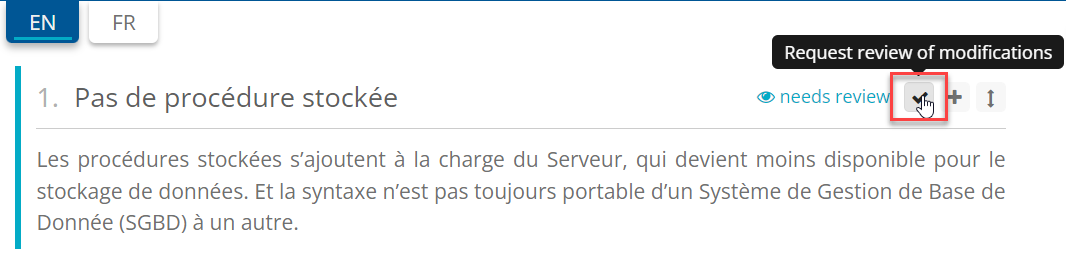
For each updated section, click on the 'Need review' button in order to request a review.
Section to be reviewed
Review a procedure section
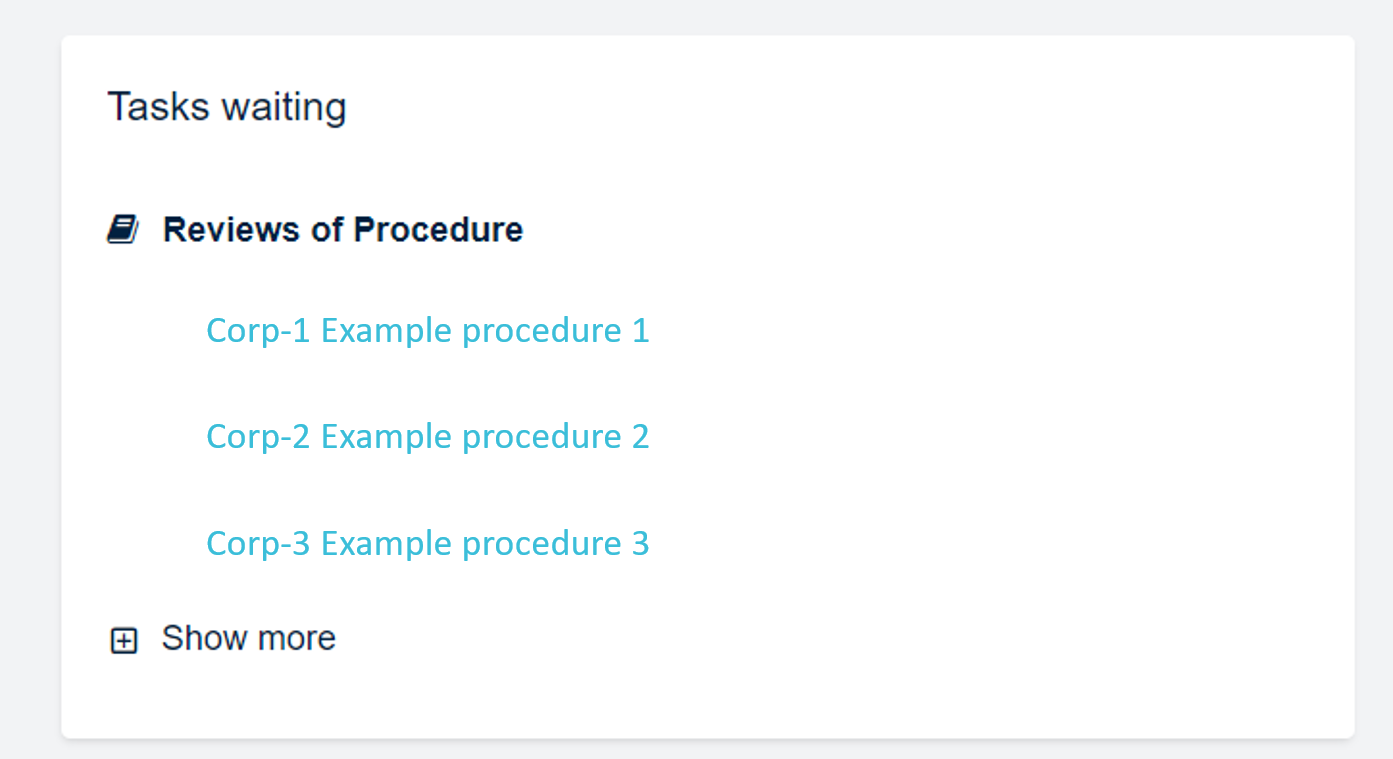
From your profil view, you can find the procedures that need to be reviewed.
Procedures to be reviewed
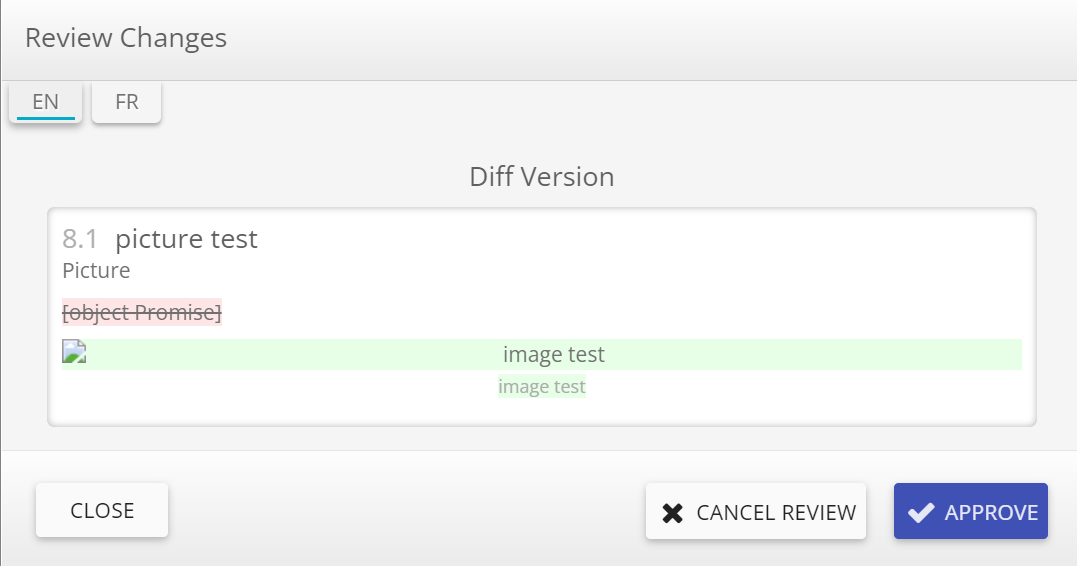
Click on the 'Edit' button to see which sections need to be reviewed. Then click on it to open the screen of the review changes. From this screen you will be able to view changes and approve them.
Review changes screen
Delete a procedure section
If you want to delete a procedure, go to the editing screen and click the section you want to remove. From the section, click the 'Delete' button.
Delete button
