2. Governance mandate action plan process
In this article you will learn how to manage the action plan governance process and the action plan assessment.
The action plan governance process is useful to reduce the impact of potentiels problems raised by governance mandates.
Managing an action plan governance process
The 'Pilot-admin' role is required to create, update and close an action plan governance process.
Creating an action plan governance process
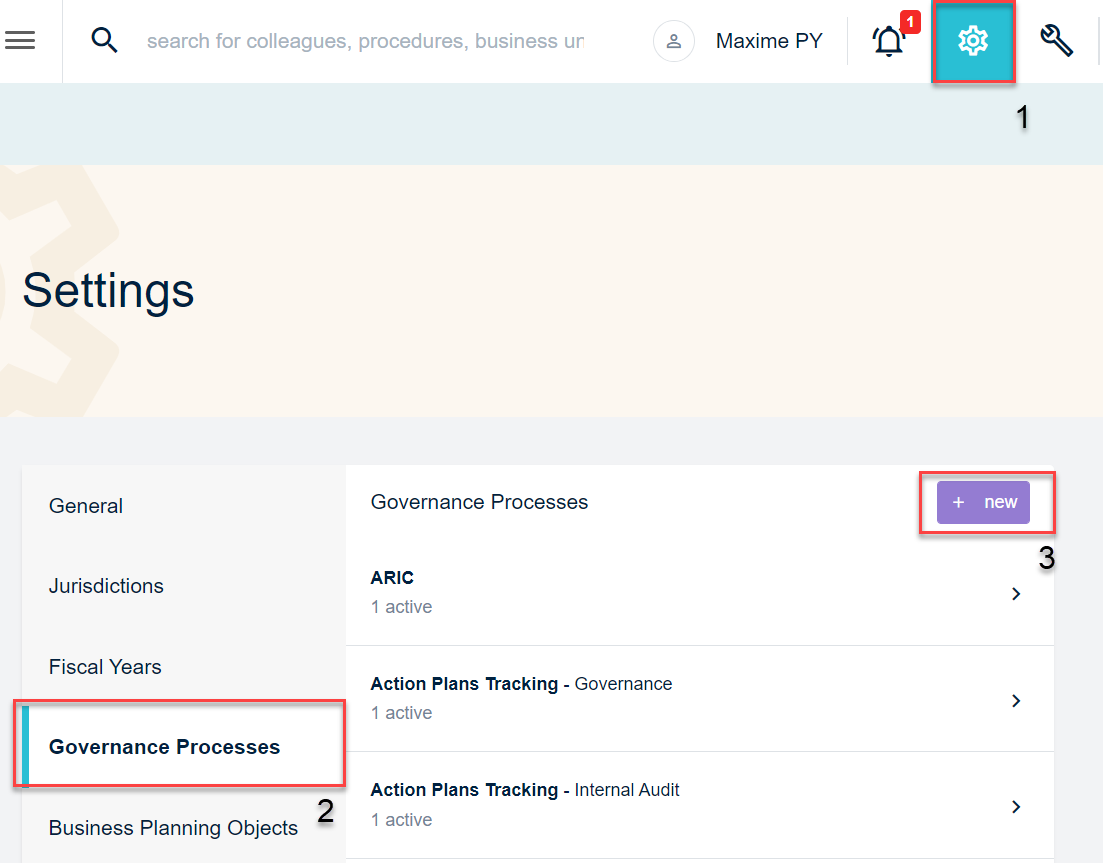
From the QuartzGOV homepage, click on the settings button on the top right of the screen to open the settings menu. Select the 'Governance processes' option and click on the 'new' button.
Way to access to the governance process creation screen
The following articles also refer to the Governance Processes screen:
Information Security Mandate 2. Information security mandate action plan governance process
Master and Key Controls 2. ARIC process management
Oversight, Audit and Tracking 2. Audit action plan governance process 3. Audit email tracking
Risk Management 1. Risks
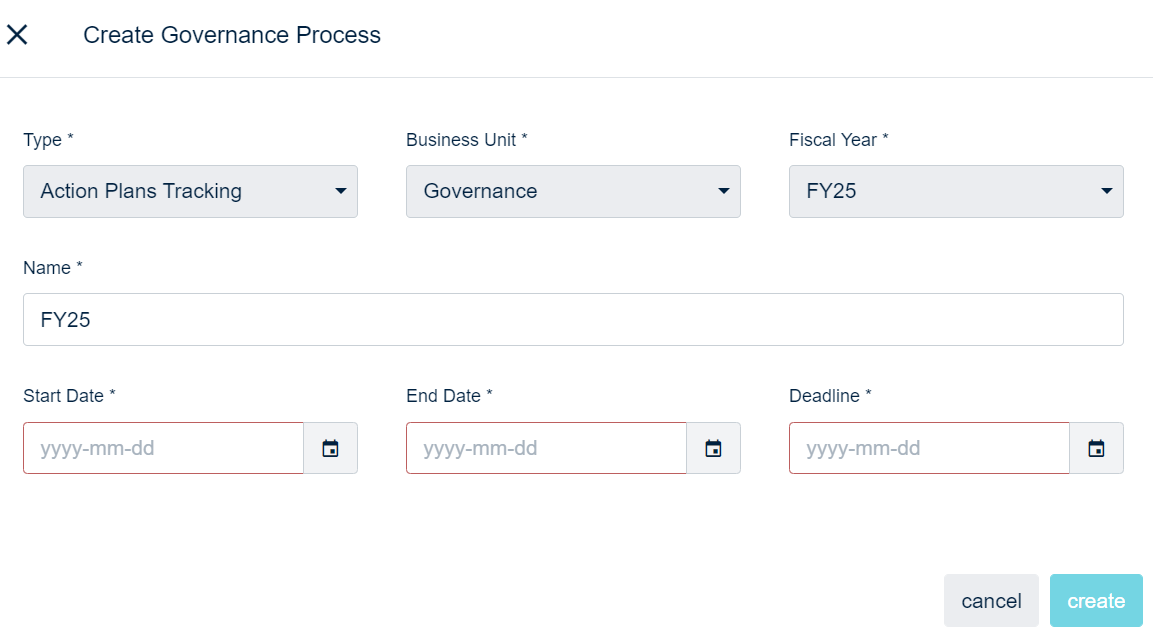
A governance process creation screen will appear. On this screen, you should be able to:
- Select 'Action plan tracking' from the 'type' drop-down list;
- Select 'Governance mandate' from the 'business unit' drop-down list;
- Select the fiscal year you want in the 'Fiscal year' drop-down list;
- Add the name of the action plan governance process;
- Select the start date, end date and deadline;
- And, click on the 'create' button.
Action plan governance process creation screen
It is not possible to create a new action plan governance process while one is already open.
Updating an action plan governance process
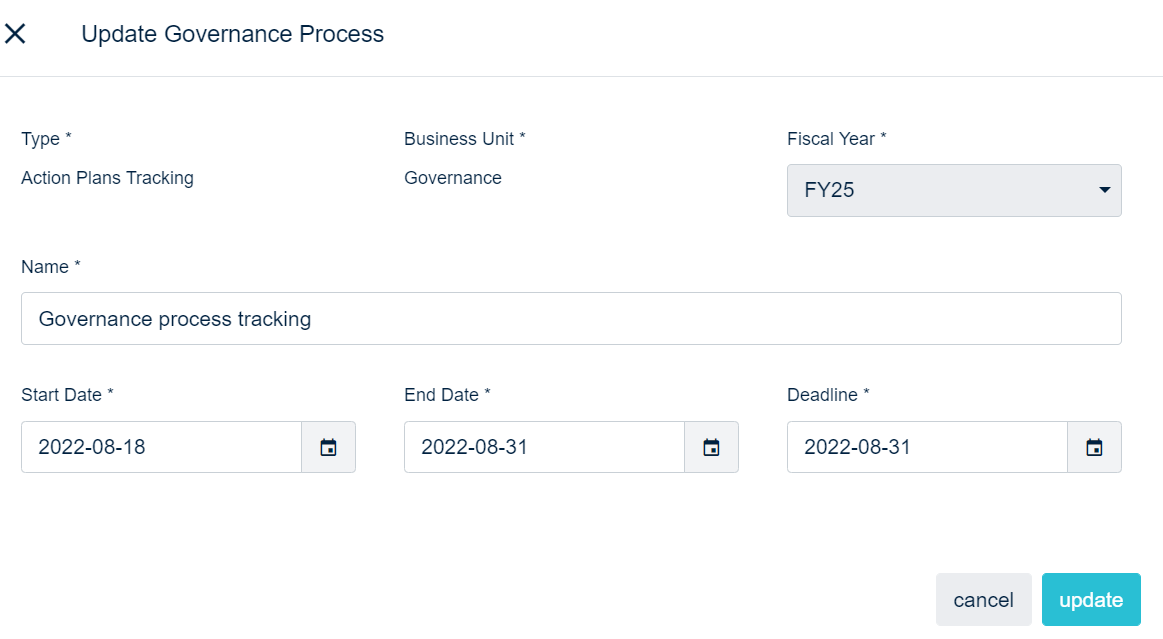
From the setting menu, click on the 'governance processes' button to display the governance process list. Open 'Action plans tracking - Governance' and click on the 'edit' button in order to open the edit screen. You can edit the fields you want to update.
Action plan governance process update screen
Closing an action plan governance process
From the QuartzGOV homepage, click on the 'Action plans progress tracking | Governance' link under the field with your name in order to open the action plans assessment screen. From this screen, you should be able to click on the 'close process' button on the top right of the screen.
Action plans assessment main screen
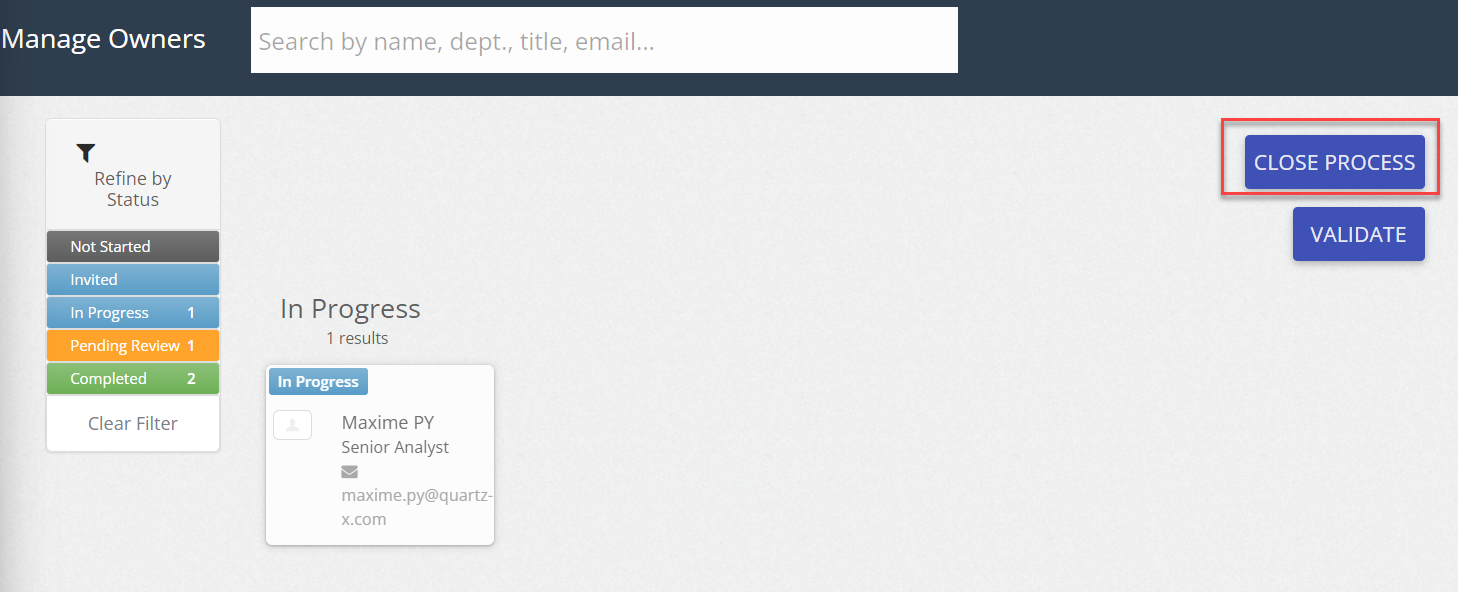
All action plans must be completed in order to be able to close the process.
You can click on the 'validate' button in order to see the action plans that remain to be completed.
Managing deliverables and action plans assessments
The 'Pilot-GrpBusinessUnit_BTGMandate' role is required to manage action plans and deliverables assessment.
Inviting an action plan owner to perform his assessment
From the QuartzGOV homepage, click on the 'Action plans progress tracking | Governance' link under the field with your name in order to open the action plans assessment screen.
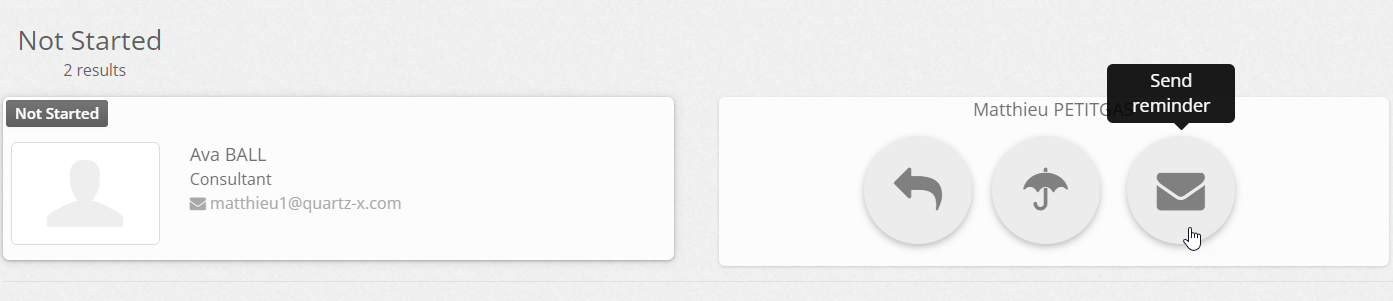
Action plans owners or delegates who have not started their assessment appear with the 'not started' status.
To invite someone, click on the card with their name and click on the 'send reminder' button. The person will receive a notification on QuartzGOV and an email invitation with a link to go to their action plan assessment screen.
Ways to invite action plans owners and delegates
Accessing your assessment dashboard
You can access your action plans assessment dashboard from the application or from your email address if you have received an invitation email.
Accessing the dashboard from QuartzGOV
From the QuartzGOV homepage, click on the 'Action plans progress tracking | Governance' link under the field with your name in order to open the action plans assessment screen. Form this secton, you can click on the card with your name and click on the 'Review action plans' button to open your assessment dashboard.
Accessing the dashboard from your email address
Click on the invitation link in the email.
Performing deliverables and action plans assessment
The process is to provide a status for deliverables before evaluating the related action plan.
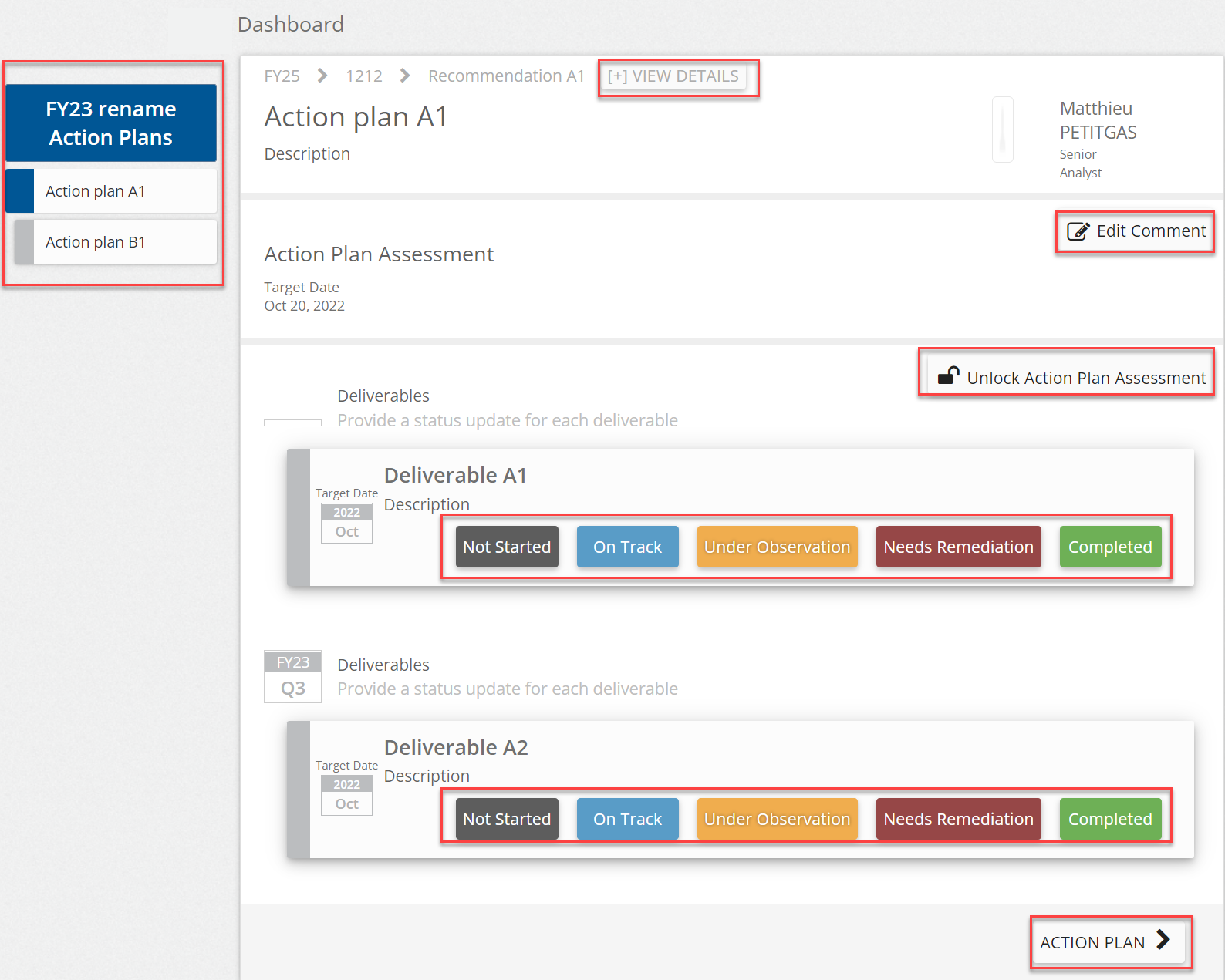
From your action plans assessment dashboard you can:
- View all details about an action plan by clicking on the ' view details' button;
- See all action plans linked to the audit mandate in the summary on the left of the screen;
- Add a comment action plan assessment with the 'Edit comment' button;
- Click on the 'Lock assessment and start review' to start the deliverable assessment;
- Click on a status to provide a status to each deliverable;
- And, click on the 'action plan' button to go to the action plan assessment.
You can repeat the same actions for the action plan assessment.
Action plan assessment dashboard
User with the 'Pilot-GrpBusinessUnit_BTGMandate' role can assess everyone's action plans.
Performing a deliverable and action plans review
Once the assessment is done it must be reviewed by another user with the 'Pilot-GrpBusinessUnit_BTGMandate' role.
From the action plan assessment main screen, click on the 'review assessment' button on a card with the 'pending review' status in order to display the action plan dashboard with the evaluation. From this section you can:
- Add a comment with the 'edit comment' button;
- Click on the 'change review' to modify an assessment if needed;
- And, if you agree with the evaluation, you can click on the 'review and continue' button to completed the review.
Once all action plans are reviewed, the card will appear as 'completed'.