3. Audit email tracking
In this article you will learn how manage a recommendation email tracking process and how use this feature.
Recommendation email tracking feature is useful to ensure the follow-up of the audit recommendations and their associated action plans and deliverables by sending reminder to owners.
Managing a recommendation email tracking governance process
The 'Pilot-admin' role is required to create, update and close a recommendation email tracking governance process.
Creating a recommendation email tracking governance process
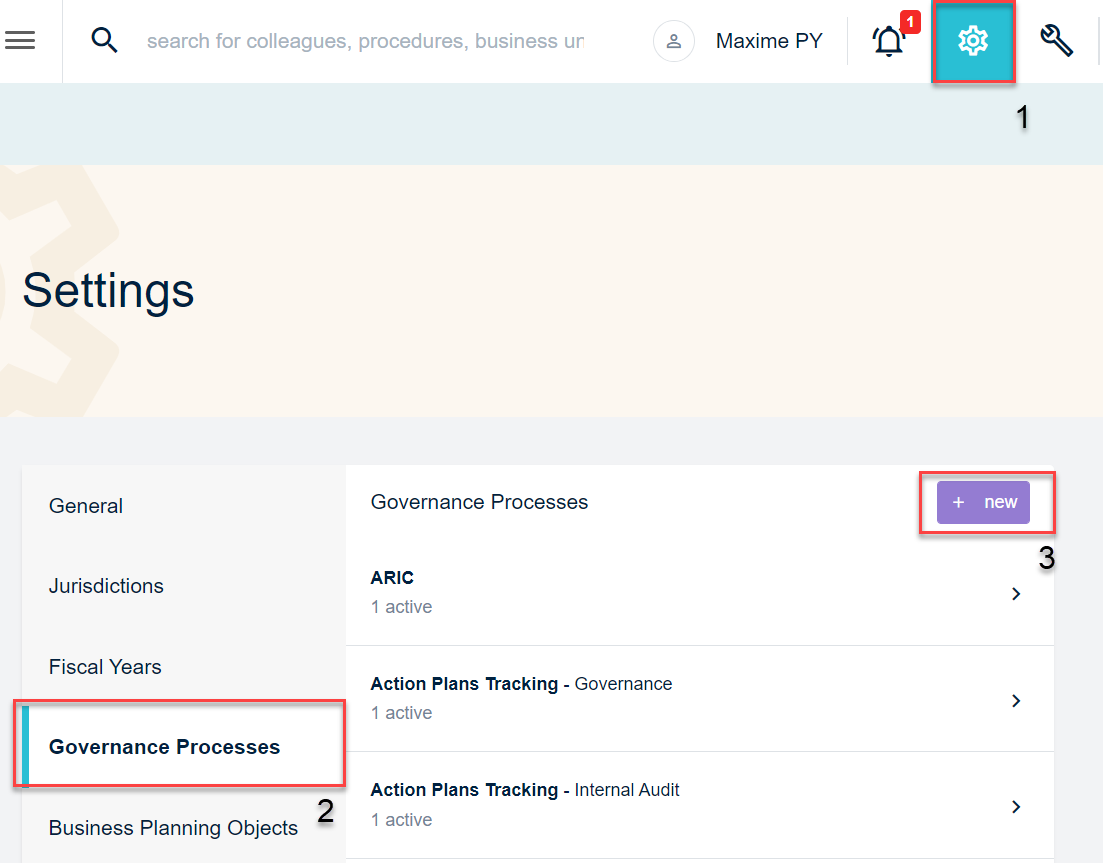
From the QuartzGOV homepage, click on the settings button on the top right of the screen to open the setting menu. From this screen, select the 'Governance processes' option and click on the 'new' button.
Accessing the governance process creation screen
The following articles also refer to the Governance Processes screen:
Governance Mandate 2. Governance mandate action plan process
Information Security Mandate 2. Information security mandate action plan governance process
Master and Key Controls 2. ARIC process management
Oversight, Audit and Tracking 2. Audit action plan governance process
Risk Management 1. Risks
A governance process creation screen will appear. On this screen you should be able to:
- Select 'recommendation email tracking' from the 'type' drop-down list;
- Select the fiscal year you want from the 'Fiscal year' drop-down list;
- Add a name to the recommendation email tracking governance process;
- Select the start date, end date, and deadline;
- Click the 'is active' button in order to activate the process;
- And, click on the 'create' button.
It is not possible to create a new recommendation email tracking governance process while one is already open.
Updating a recommendation email tracking governance process
From the setting menu, click on the 'governance processes' button to display the governance process list. Open 'Recommendation email tracking' and click on the 'edit' button in order to open the edit screen. From this screen, you should be able to edit any of the fields you want to modify.
Inactivate a recommendation email tracking governance process
From the edit screen, click the 'active' button to inactivate the email tracking process.
Using the recommendation email tracking feature
You can use the recommendation email tracking feature only if one recommendation email tracking governance process is active.
Accessing the recommendation email tracking main screen
From the QuartzGOV homepage, click on the 'Recommendation email tracking' button in the 'Oversight, Audit and Tracking' module to open the recommendation email tracking main screen.
Using the recommendation email tracking main screen
From the recommendation email tracking main screen you can:
- View the history of all recommendation email tracking governance process in the 'Governance process' drop-down list;
- Add people with the 'add people' button;
- Use the search bar to find users that have already been added;
- Remove a user from the list by clicking on his card and selecting 'remove from the list';
- And, view the tracking status of each user during the process.
Recommendation email tracking main screen
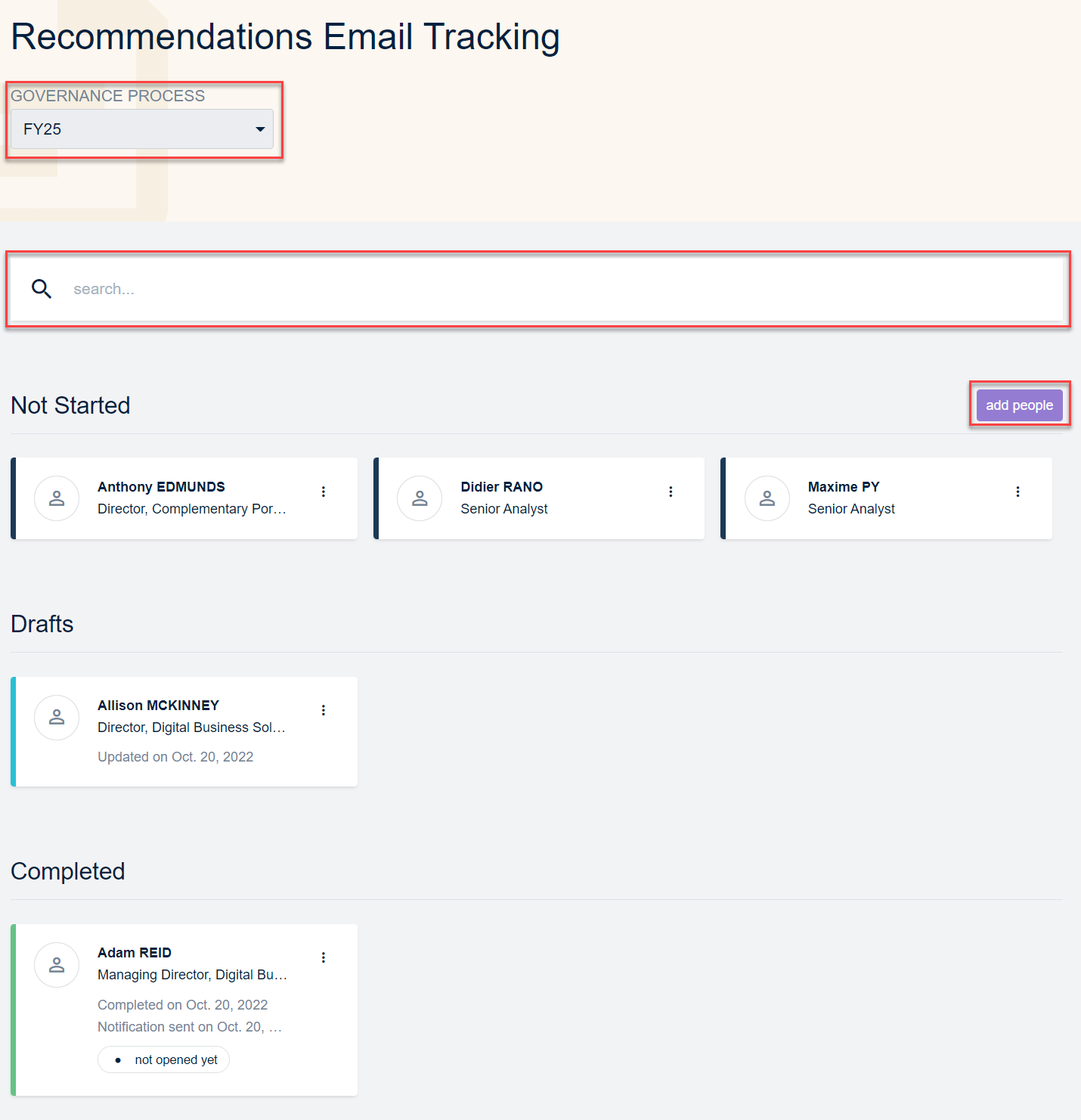
- People appear with Not started status when their report are not prepared.
- People appear with Draft status when their report is ready but not sent.
- People appear with Completed status when their report is sent.
Managing recommendations tracking reports
Depending on the status of the recommendation tracking process you can perform different actions from the card menu.
From 'not started' cards
Click on a card menu in order to:
- View the email template with 'view template' button;
- Edit the email template with the 'edit template' button;
- And, attach recommendation reports to the mail template with 'prepare report'.
From 'drafts' cards
Click on a card menu in order to:
- Open the edit template by clicking on 'edit report';
- Send report with the email template to the person who is on the card by clicking on 'send report';
- And, reset report by cliking on 'resert report'.
From 'completed' cards
Click on a card menu in order to:
- View the report;
- Resend report;
- And revert to draft report.
Use the edit recommendation report feature
The edit recommendation report screen allows you to:
- Change signature of the mail by clicking on the 'change signature button';
- Edit email content;
- Download the report from the 'attachments' menu;
- Add attachments with 'add attachment' button;
- And, remove attachment with ' remove' button.